Unblock Dailybot in your Microsoft Teams admin
Have you ever encountered any of these situations?
- Suddenly stopped receiving check-in reminders from Dailybot
- You’re unable to interact with the bot in your Microsoft Teams workspace
- When clicking any buttons it says that the bot is disabled
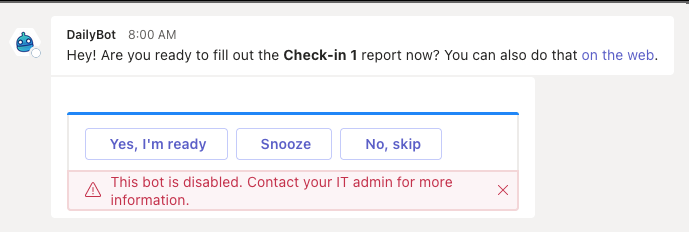
No worries, we’ve prepared a quick guide to troubleshoot in a few minutes:
-
Go to Microsoft Teams Admin page > move to the Manage apps section > search Dailybot - There you might see that the app is blocked:
-
Select Dailybot > click the option Allow > confirm the change
-
That’s it, now you’ll see Dailybot as an allowed app in your Microsoft Teams workspace:



Now you should be able to interact with Dailybot within the chat platform again!
Still don’t work? Submit a new request here and we’ll get back to you as soon as possible.