Bulk-update members data (birthdays, anniversaries, occupation) via CSV
You must be logged into the web app to update any member’s info. If you’re not, log in using this link or use the command dashboard via chat to get a magic link.
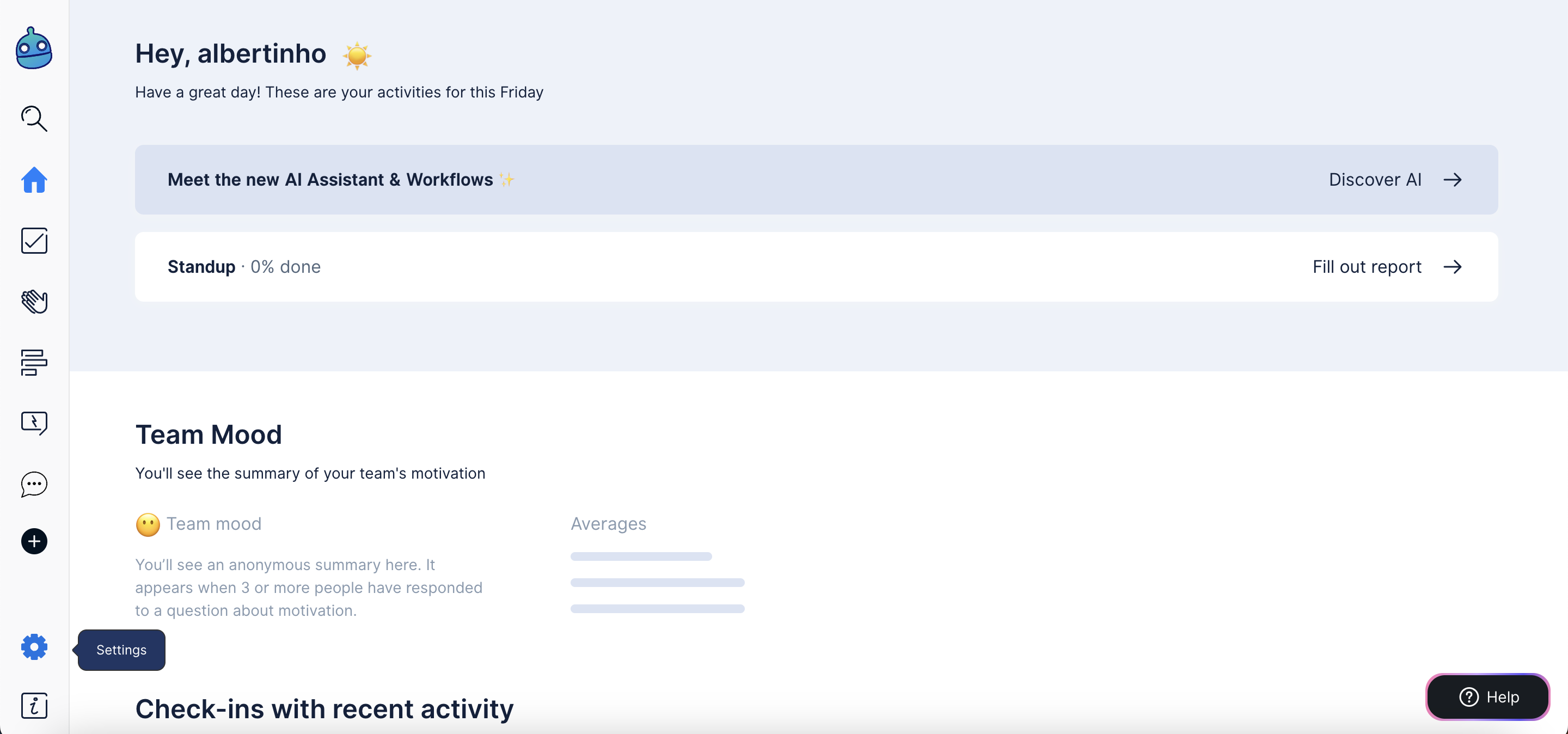
- Click Settings in the sidebar menu
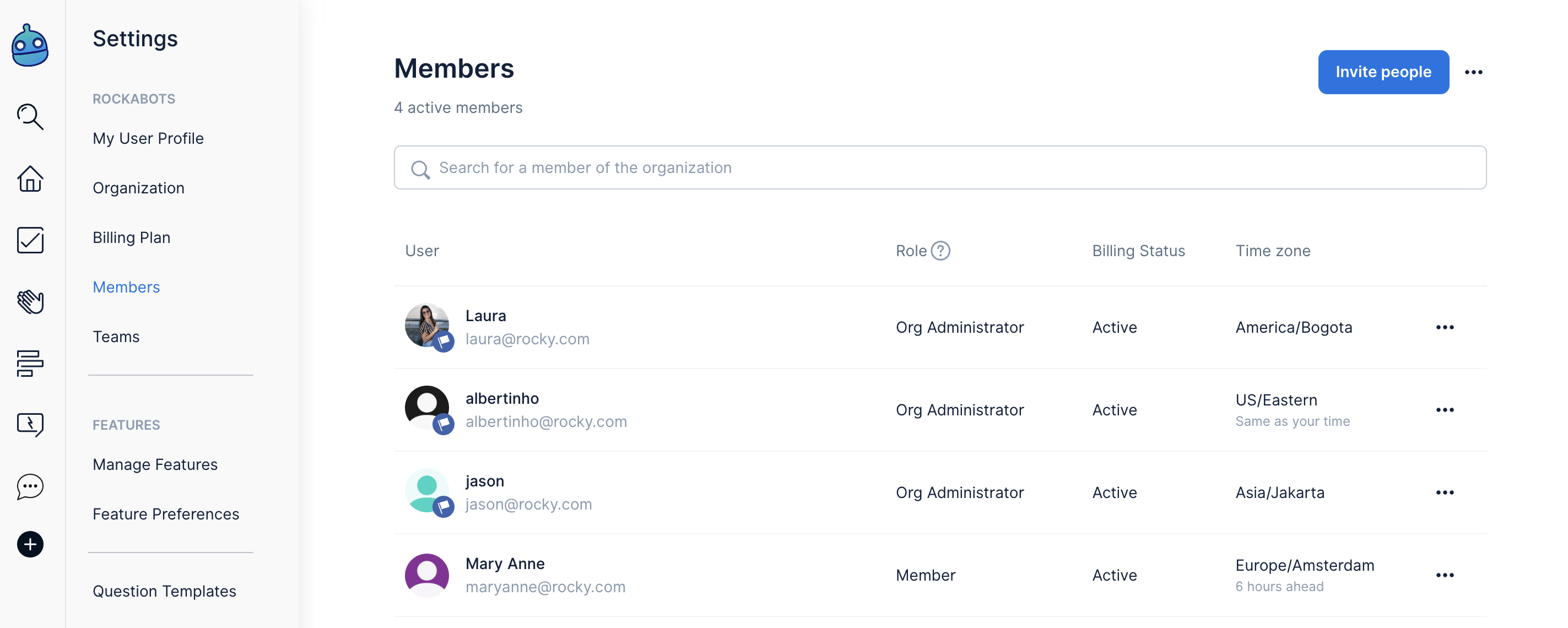
- Go to Members to find all the people that has signed up to your Dailybot organization
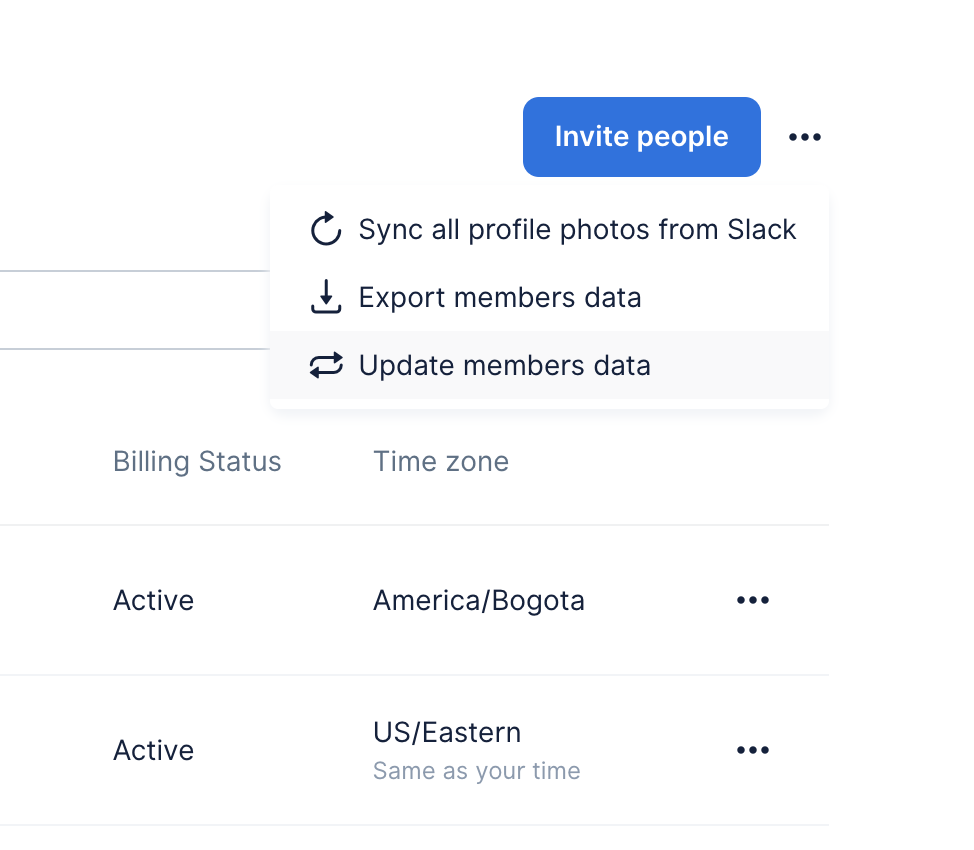
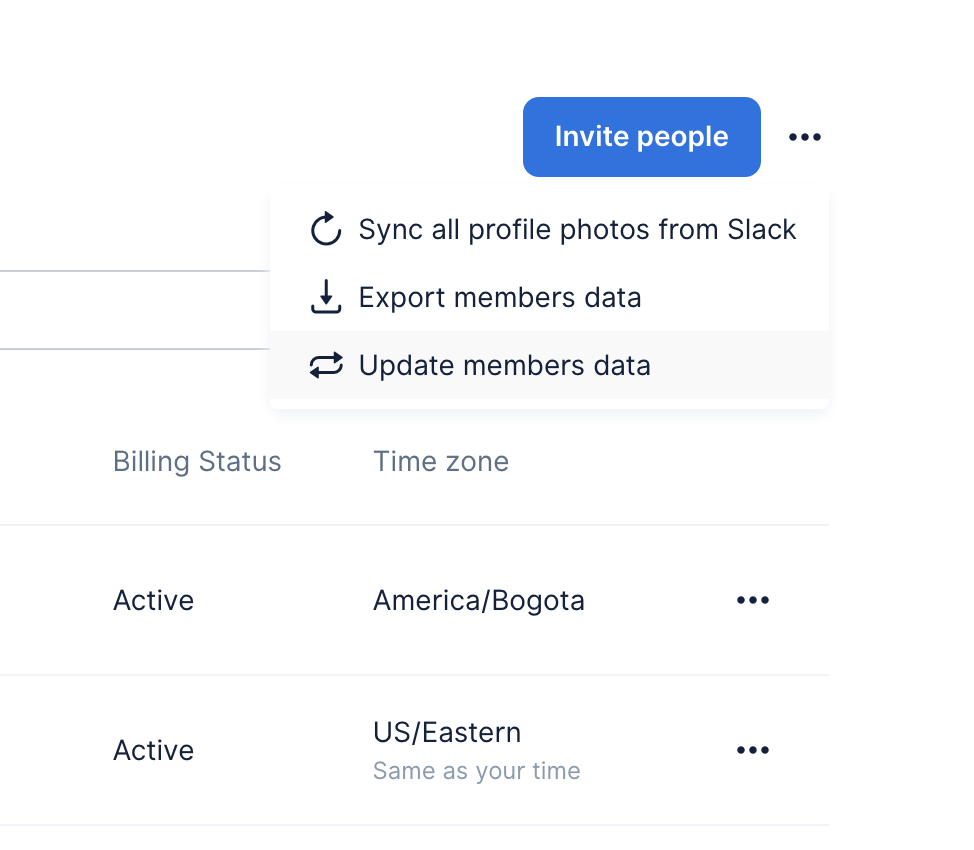
- Find the icon with the three dots next to Invite people and click on it to find the option “Update members data”
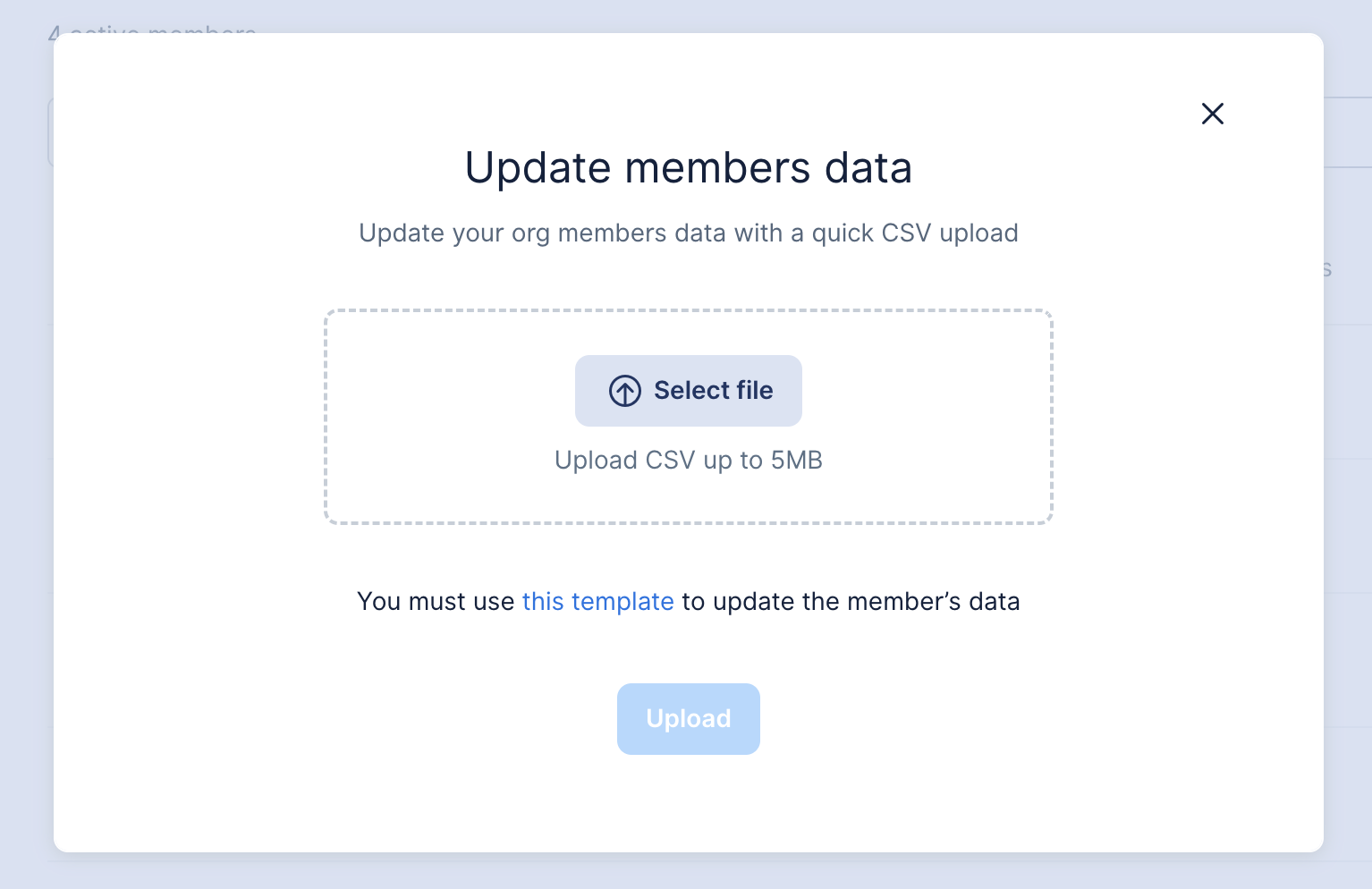
- From this modal, you can download a template .csv file with all your members information correctly formatted. Click the “this template” link under the “Select file” button to do so:
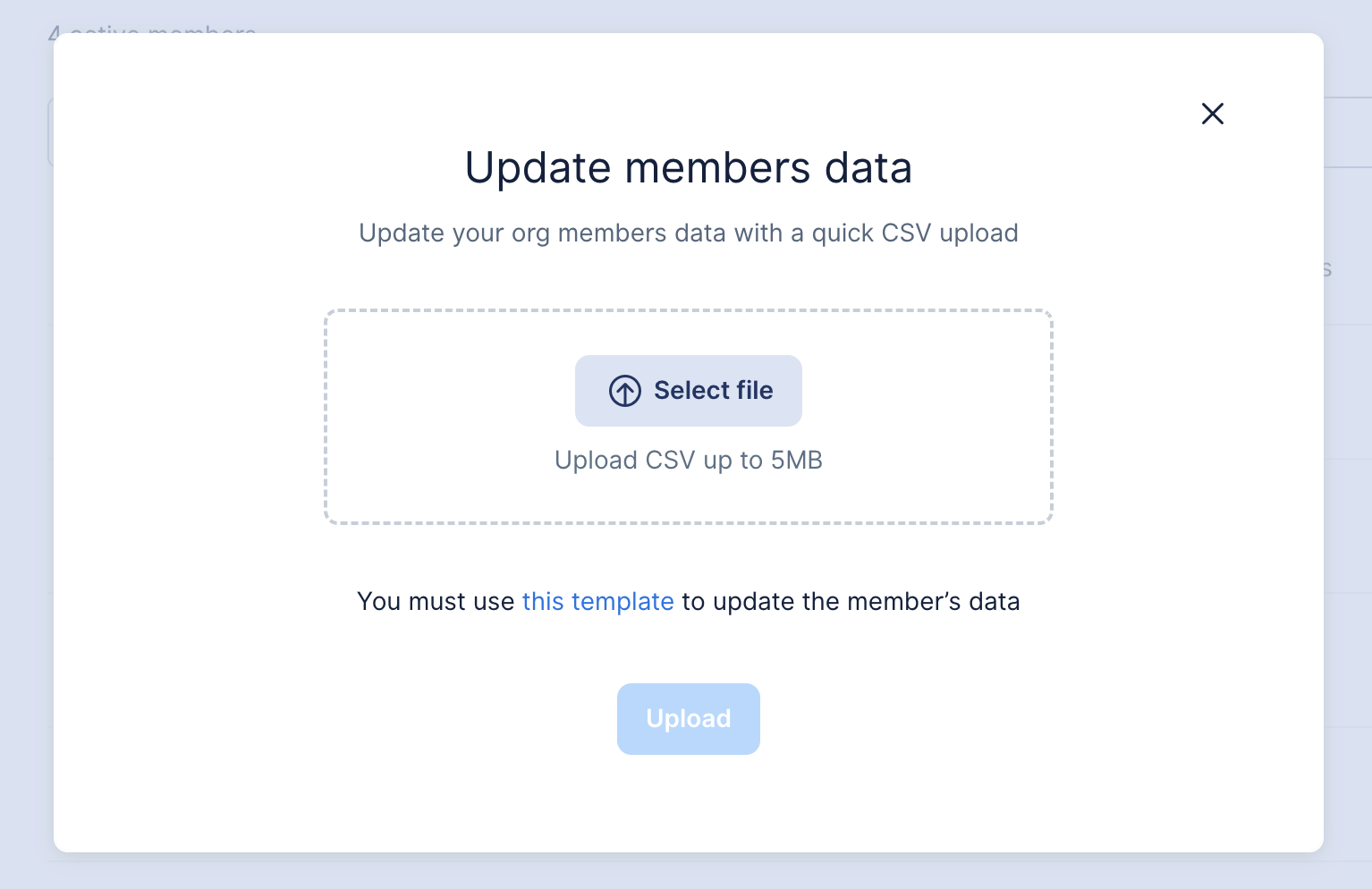
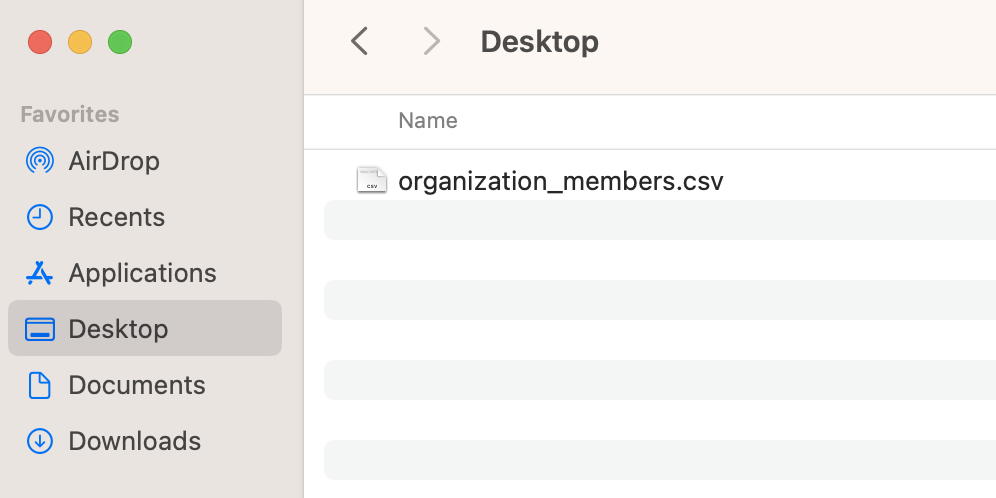
- Here’s how the file will look like once you’ve downloaded the template from the modal. We advise to directly modify the template with any updated information to avoid formatting errors on the next steps
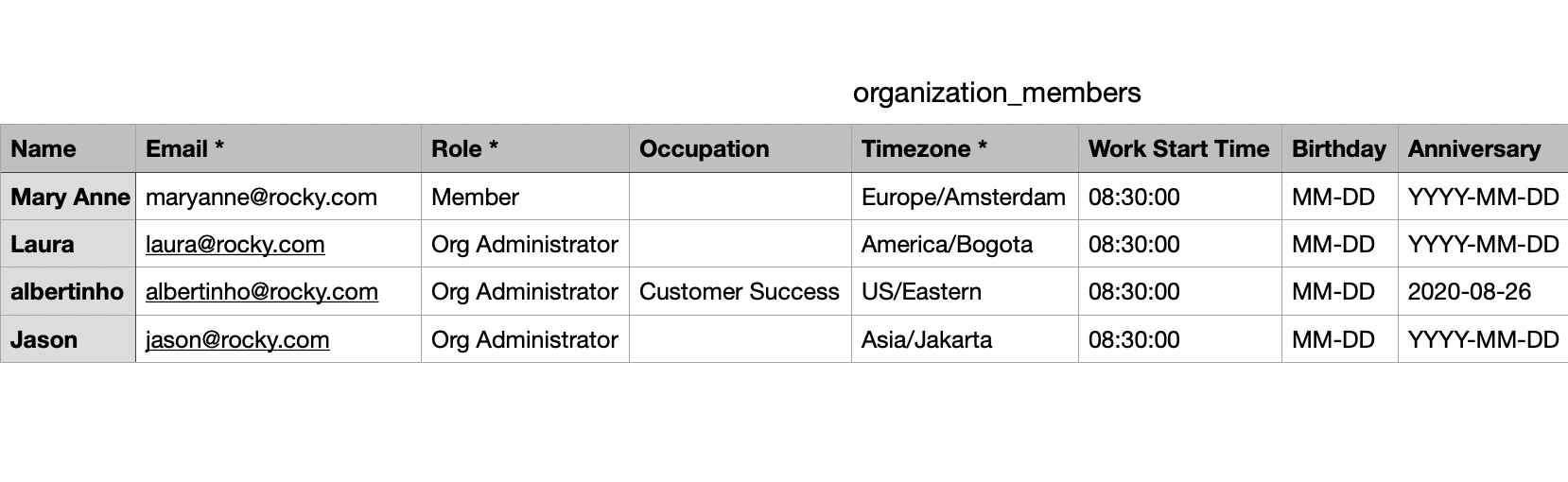
- Here’s a template file before any modifications. It contains 8 columns and as you can see none of them have their birthday information and some of them are lacking their work anniversary date. Let’s change that!
For reference: column titles with an asterisk (*) cannot be modified using this method. That is, fields like Email, Role & Timezone are not editable via csv files. That leaves:
a) Name
b) Occupation
c) Work Start Time
d) Birthday
e) Anniversary
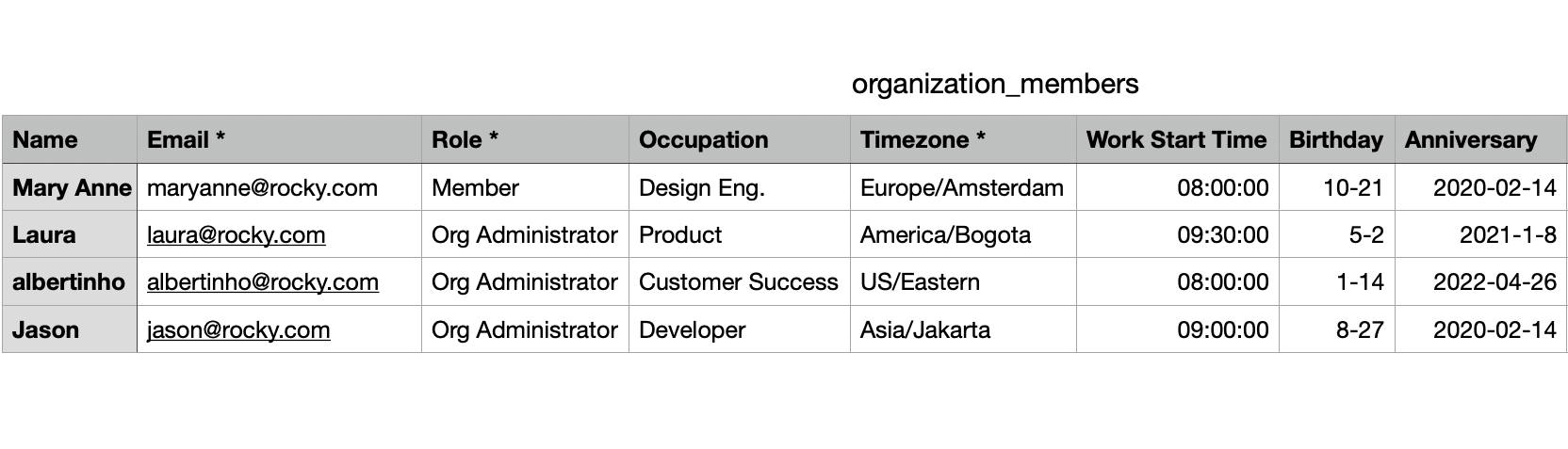
- Once you’ve added all the changes you wanted to do to the file, export it as .csv
- Go back to the Members page and click the three-dotted icon again to “Update members data” with your newly-introduced information
- Click Select file to upload the .csv you exported with the modifications
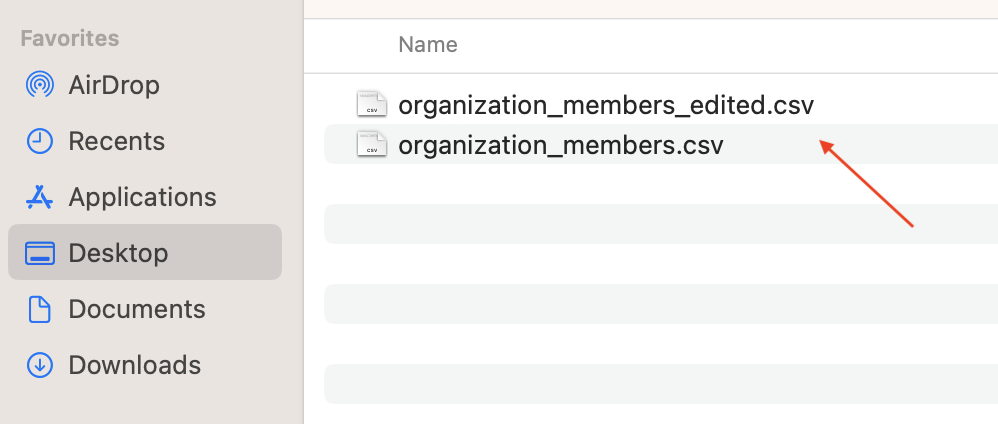
- Here’s a copy we made with the edited information to upload:
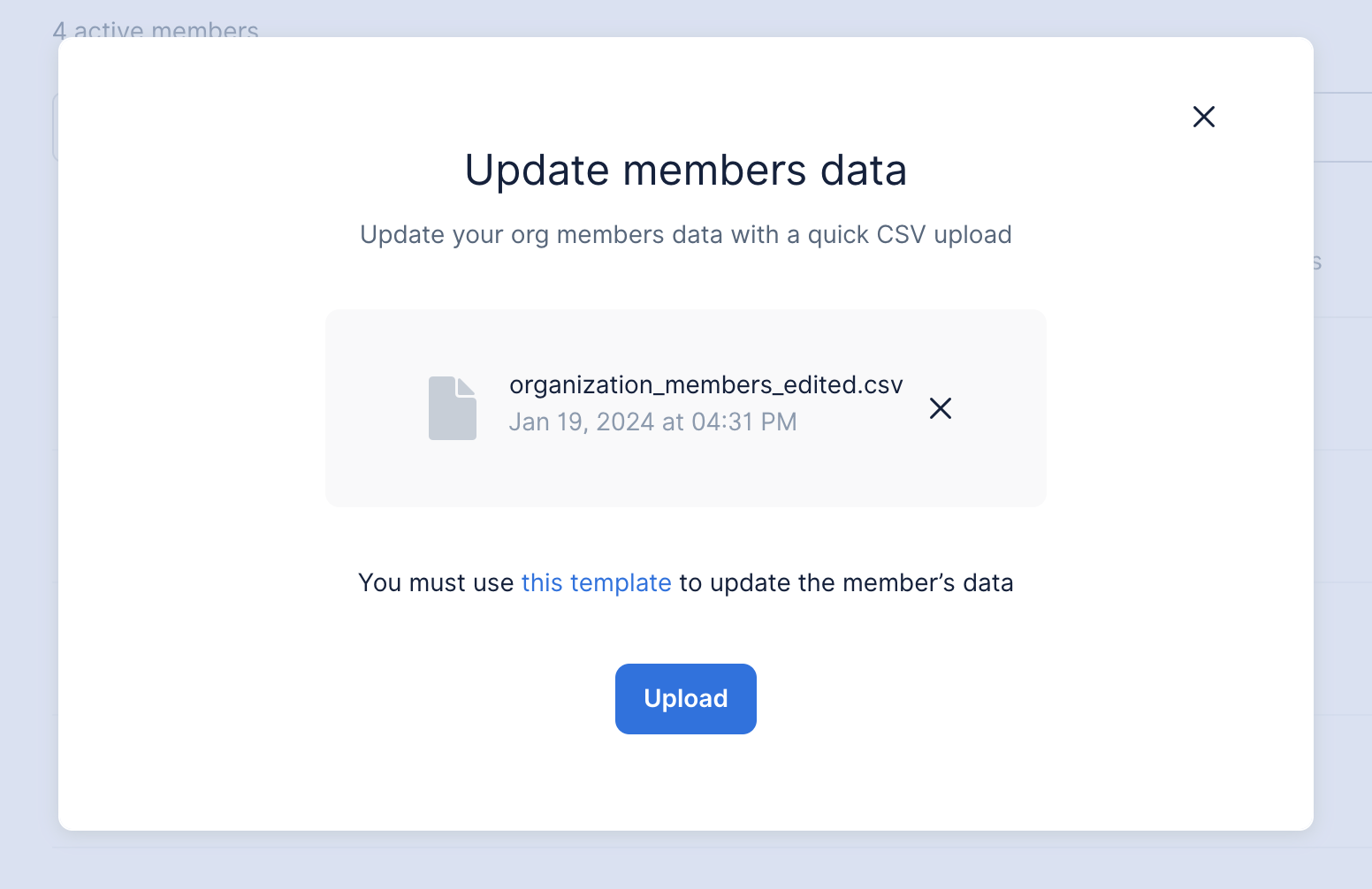
- Click Upload to update the information for multiple members at the same time:
- If all went well, you should get a confirmation message saying how many members got updates on their information! You’re on a roll.