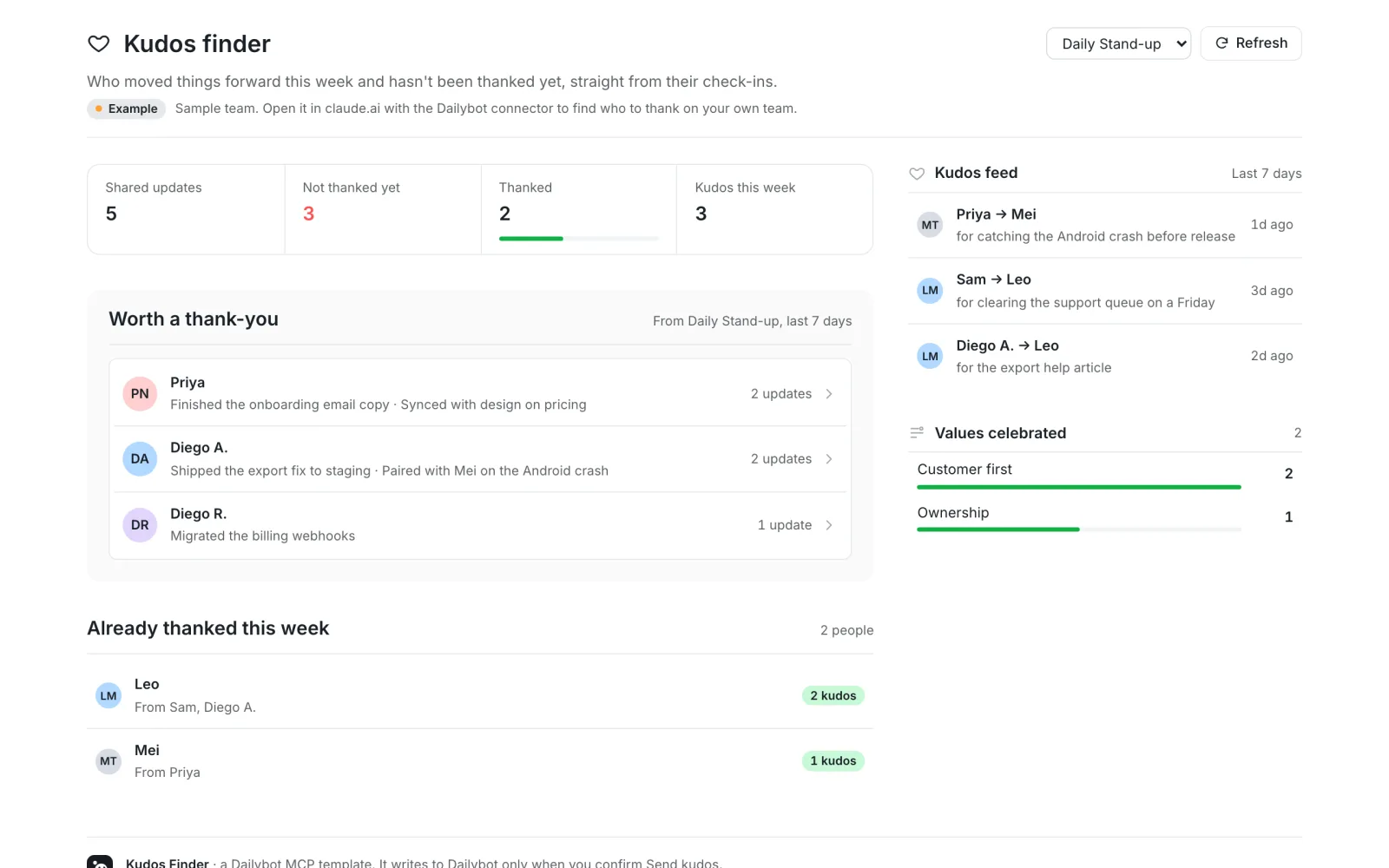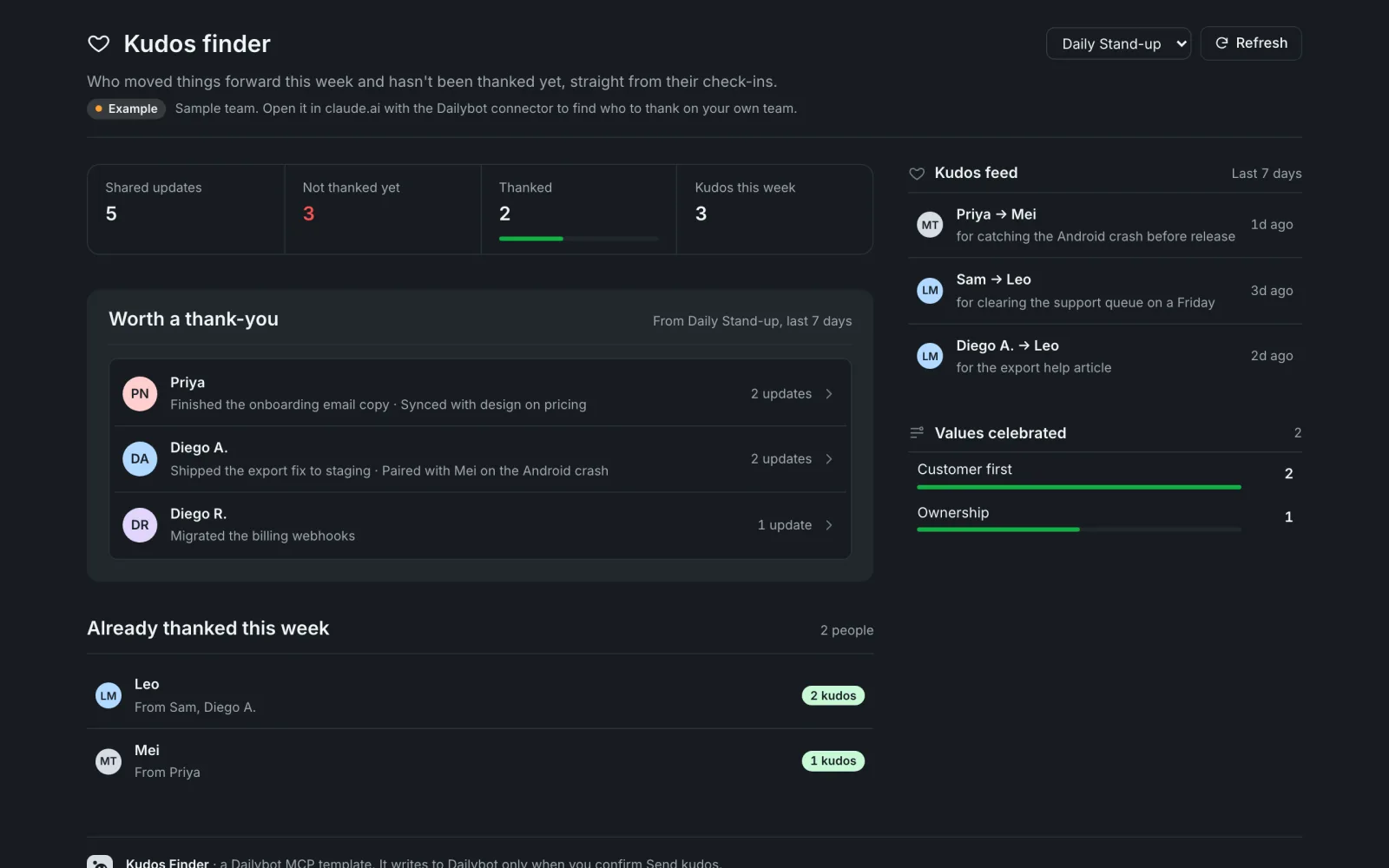
What it’s for
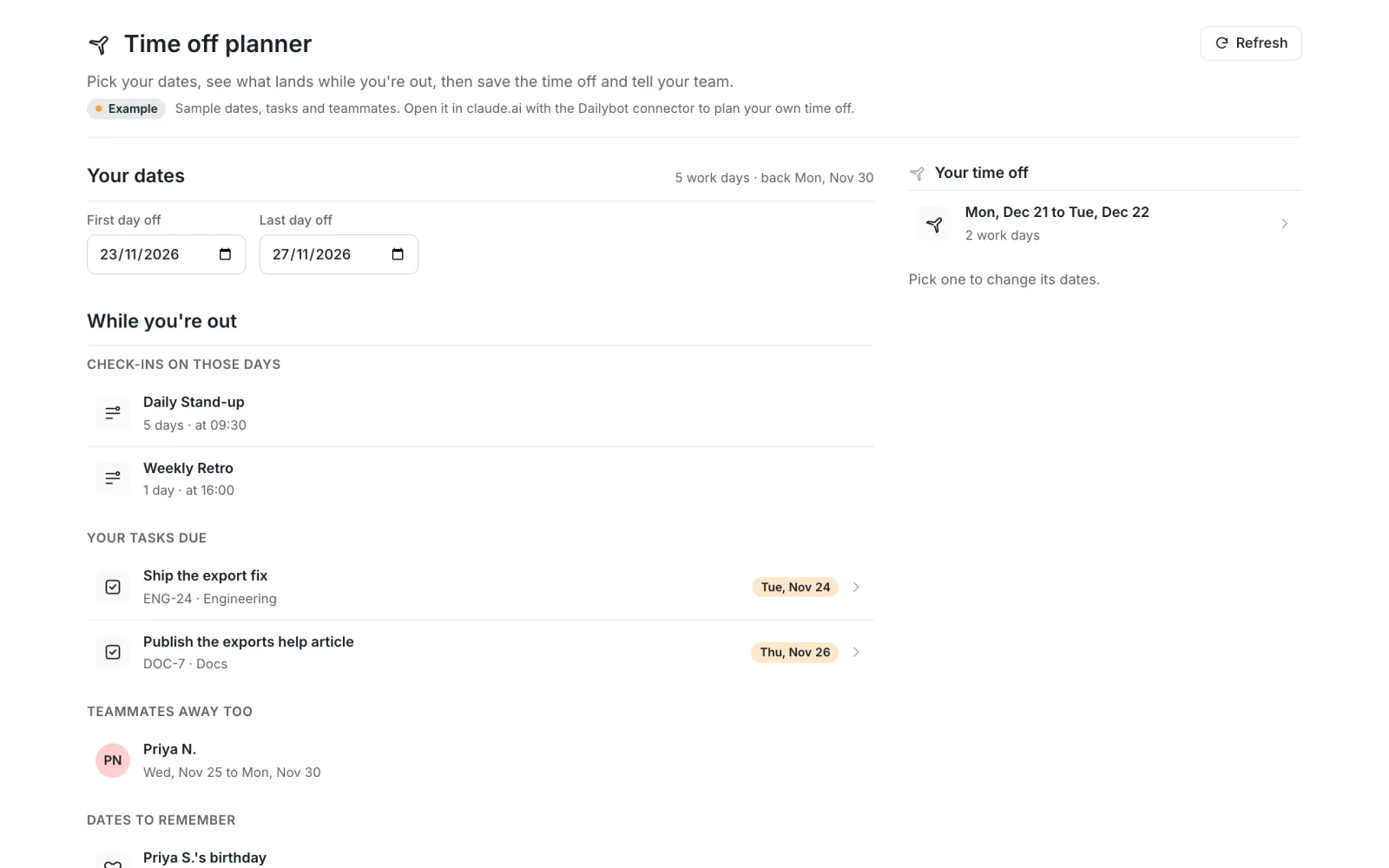
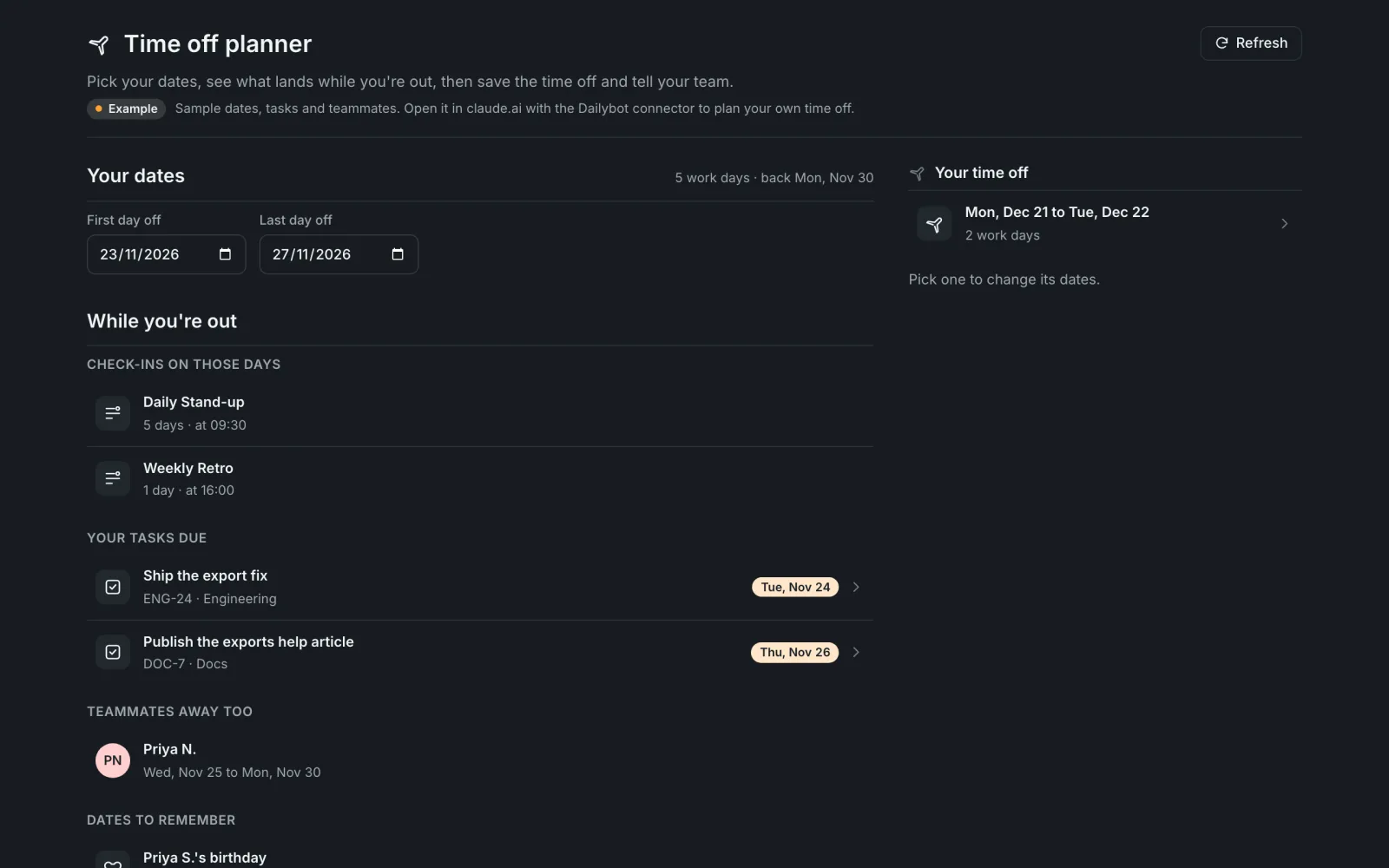
Time Off Planner helps you get ready to step away. Pick your dates and see what lands while you’re gone: check-ins you’d be asked to answer, your tasks that fall due and teammates who are out too. Then save the time off in Dailybot and tell the people who need to know, from the same page.
What you see
Your dates. The first and last day off. Next to them, how many work days that is and the day you’re back, based on your work days in Dailybot.
While you’re out. Your check-ins scheduled on those days, with how many days each one falls on. Your open tasks due in that range, each with its due date and a link to open it. Teammates who are also away, and birthdays or work anniversaries that fall while you’re out.
Save and tell. Two choices you can turn on or off: save the time off in Dailybot, and send a chat message to people or a team. The message comes prewritten with your dates, your return day and the tasks due while you’re out, and you can edit it.
The side column. Time off you already saved for the next 90 days. Pick one to load its dates and change it instead of adding a new one.
What it can change
Two things, and only after you confirm: save or change your time off in Dailybot, then send your message. The page shows the dates and who will get the message before anything is sent. If a name matches more than one person, nothing is sent and the page asks you to use a full name.
Make it yours in two steps
You need Claude and a Dailybot workspace with MCP access.
- Add the Dailybot connector to Claude. Customize (claude.ai/plugins) → Connectors → Add → Add custom connector. Name it "Dailybot" exactly, use https://mcp.dailybot.com/mcp, then Connect and Allow.
- Duplicate a template. Open it, then Share → Duplicate. Your copy runs on your Dailybot.
Without a connector named "Dailybot", a template shows example data.
Using Claude Code, Cursor, VS Code or ChatGPT? open the setup guide
Prefer to ask?
Type this in Claude with the Dailybot connector on to get the same result without the template.