What it’s for
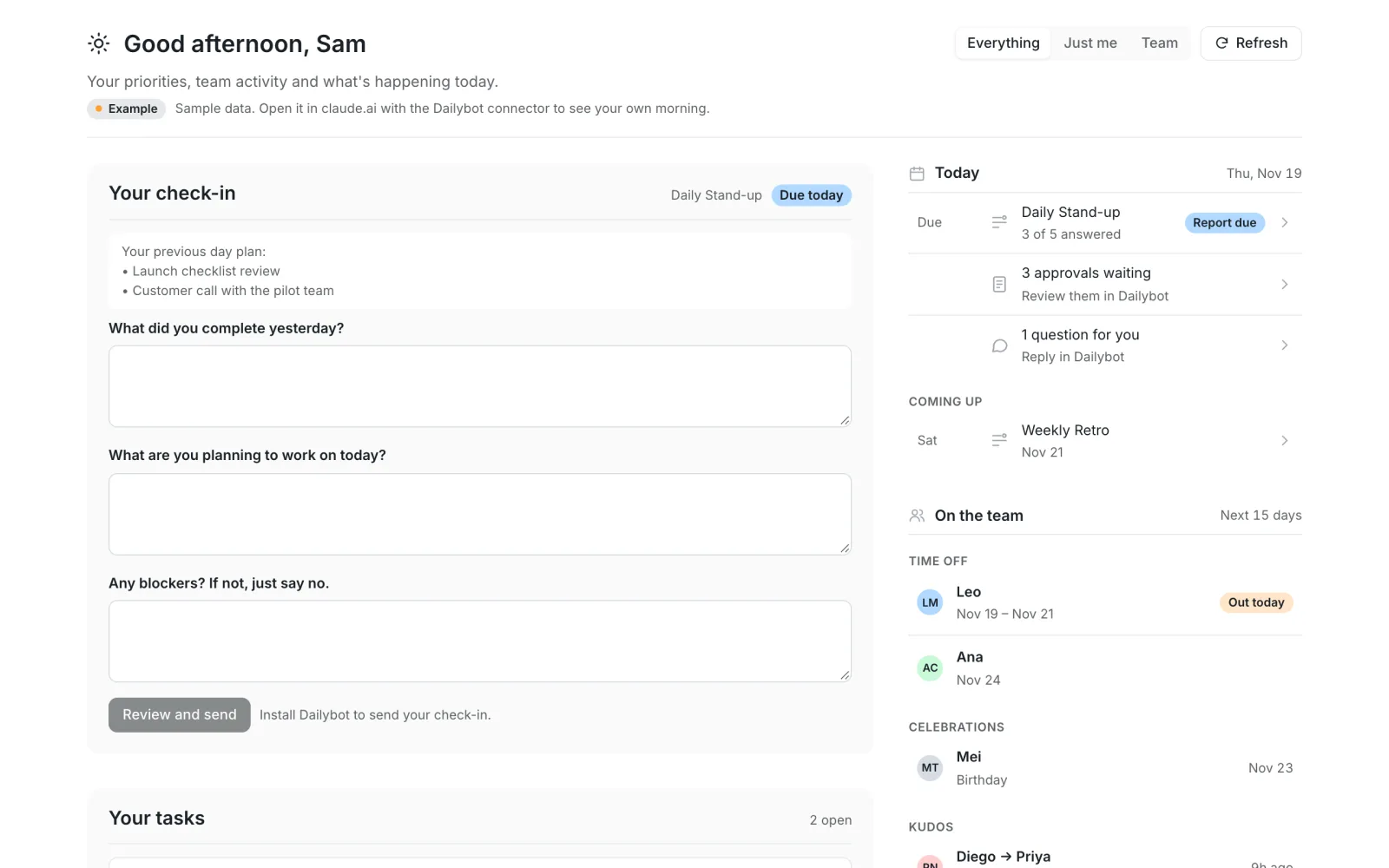
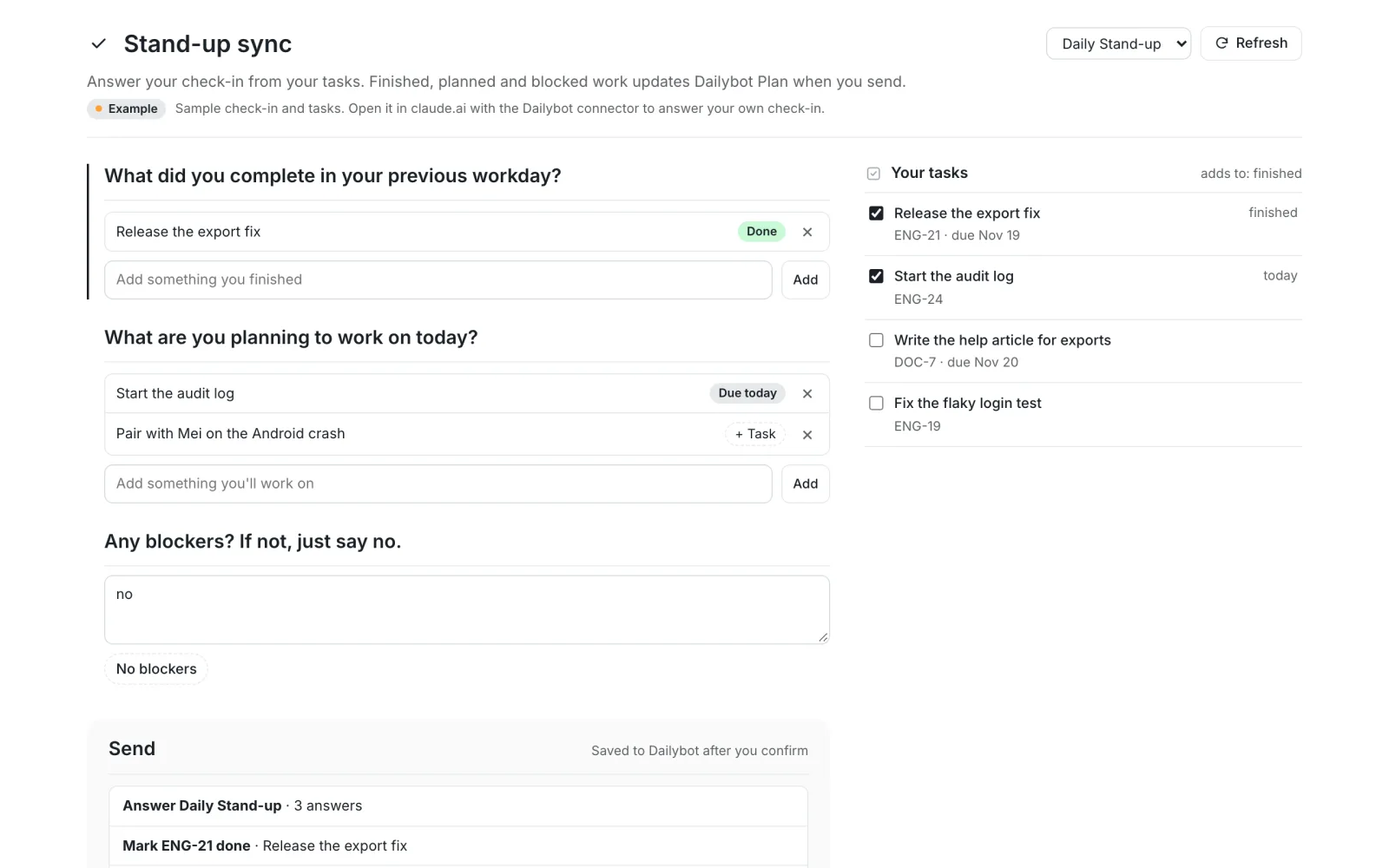
Stand-up Sync lets you answer your check-in from your own task list, and keeps your tasks in step with what you wrote. Finish the stand-up and your finished work is marked done, today’s plan is set for today, and a blocker lands on the task it blocks.
What you see
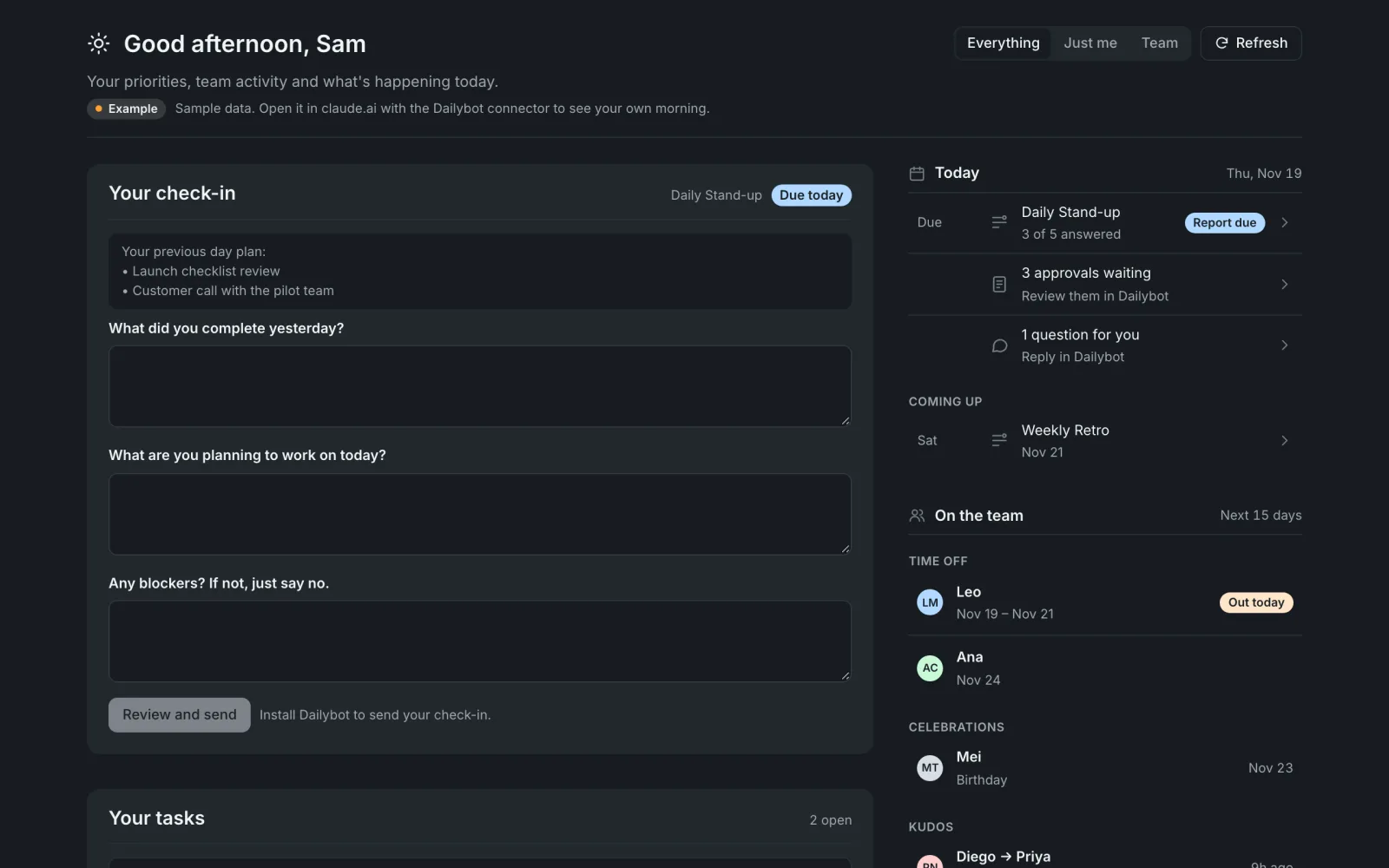
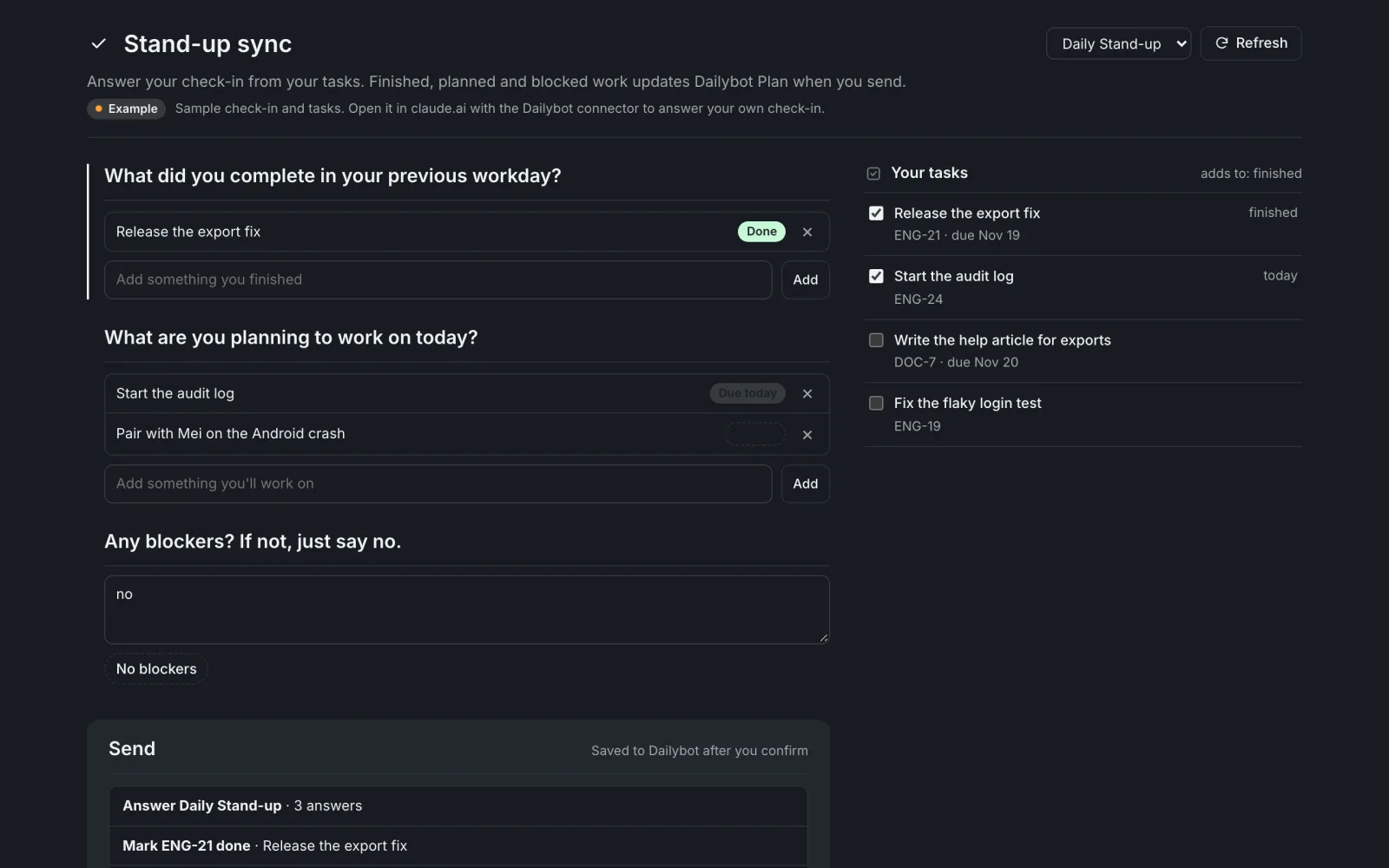
The header. A menu with the check-ins you answer, marked as answered or with the day they’re due, and a refresh button. An Example label appears when the page shows sample data.
Your questions, on the left. Click a question to work in it, then type lines or tick tasks on the right. A task in “what did you finish” is marked done, one in “what will you do today” is set for today, and a line you type for today can become a new task.
Blockers. A text field and a No blockers shortcut. While you’re in this question, ticking a task notes the blocker on it.
Other question types. Multiple choice, yes/no and number questions get one plain field. They never change your tasks.
Your tasks, on the right. Your open tasks with a checkbox. Ticking one adds it to the question you’re in.
What it can change
When you press Send, the page lists every step: post or update your check-in answer, then mark tasks done, set tasks for today, create new tasks and add the blocker note. You confirm once, and it shows which steps worked. If one fails, you can retry only that step.
Make it yours in two steps
You need Claude and a Dailybot workspace with MCP access.
- Add the Dailybot connector to Claude. Customize (claude.ai/plugins) → Connectors → Add → Add custom connector. Name it "Dailybot" exactly, use https://mcp.dailybot.com/mcp, then Connect and Allow.
- Duplicate a template. Open it, then Share → Duplicate. Your copy runs on your Dailybot.
Without a connector named "Dailybot", a template shows example data.
Using Claude Code, Cursor, VS Code or ChatGPT? open the setup guide
Prefer to ask?
Type this in Claude with the Dailybot connector on to get the same result without the template.