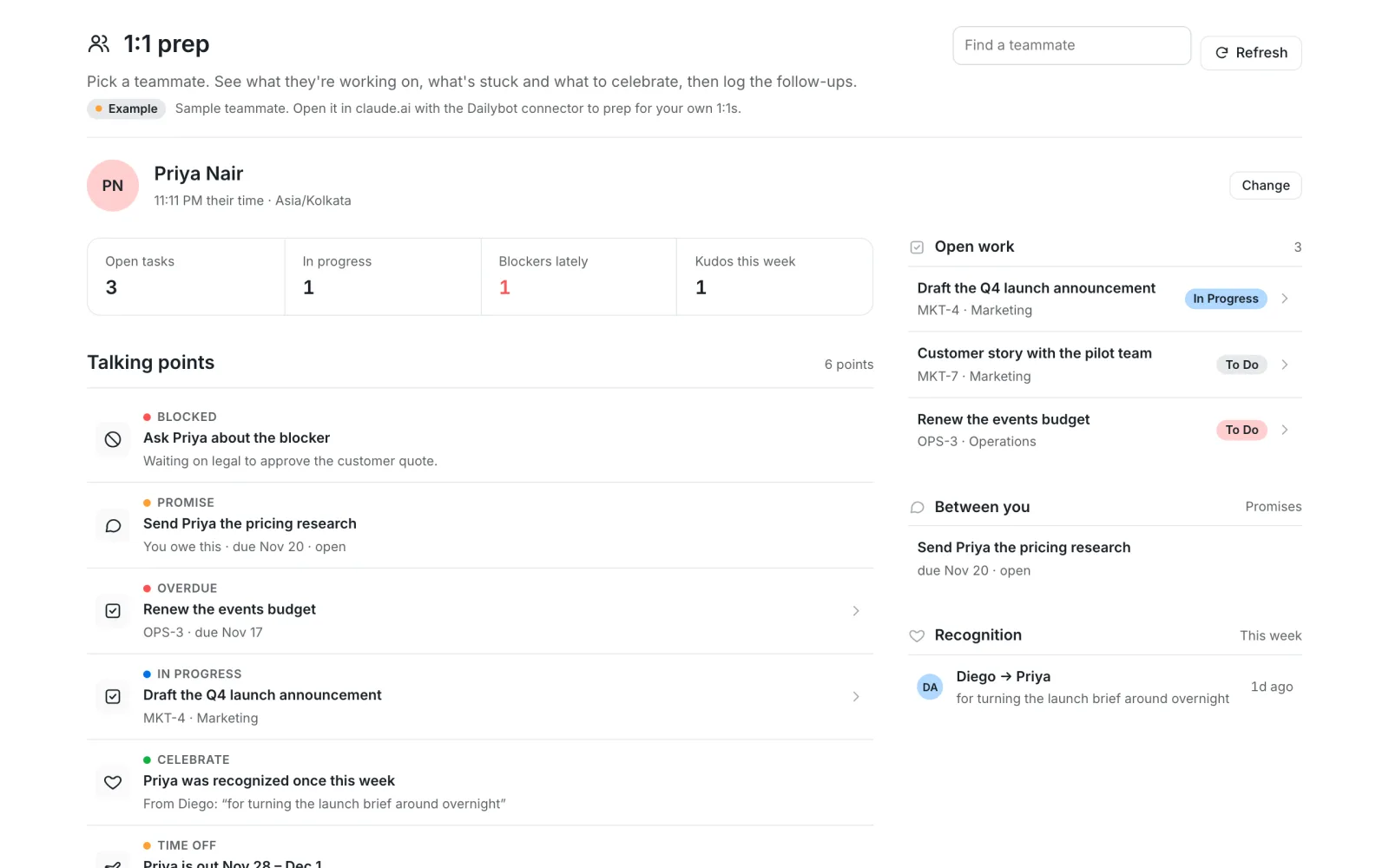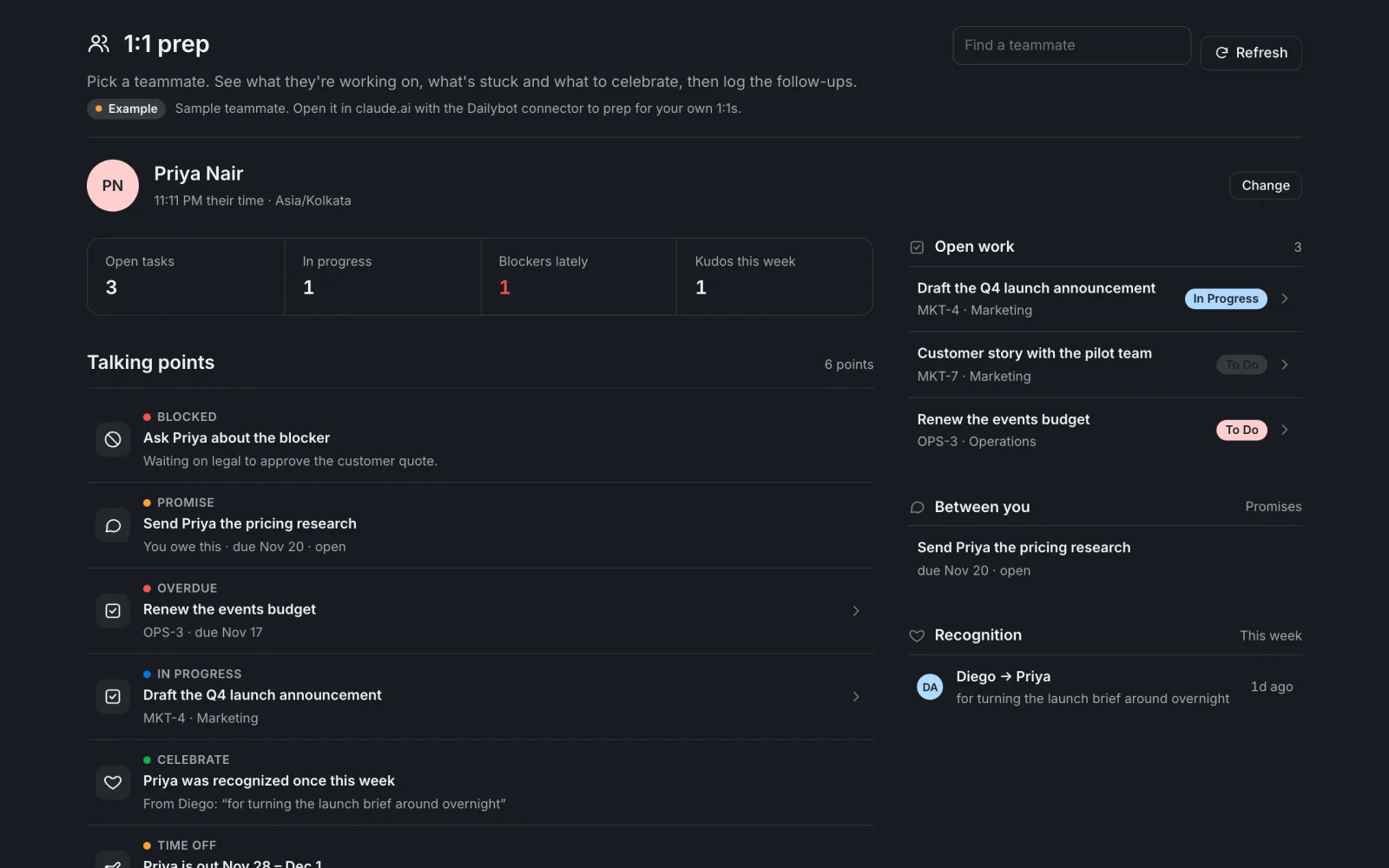
What it’s for
Team Pulse is a manager’s daily read of a check-in. Instead of scrolling every answer, you see who answered, who is blocked and who you are still waiting on, and you can act on it from the same page.
What you see
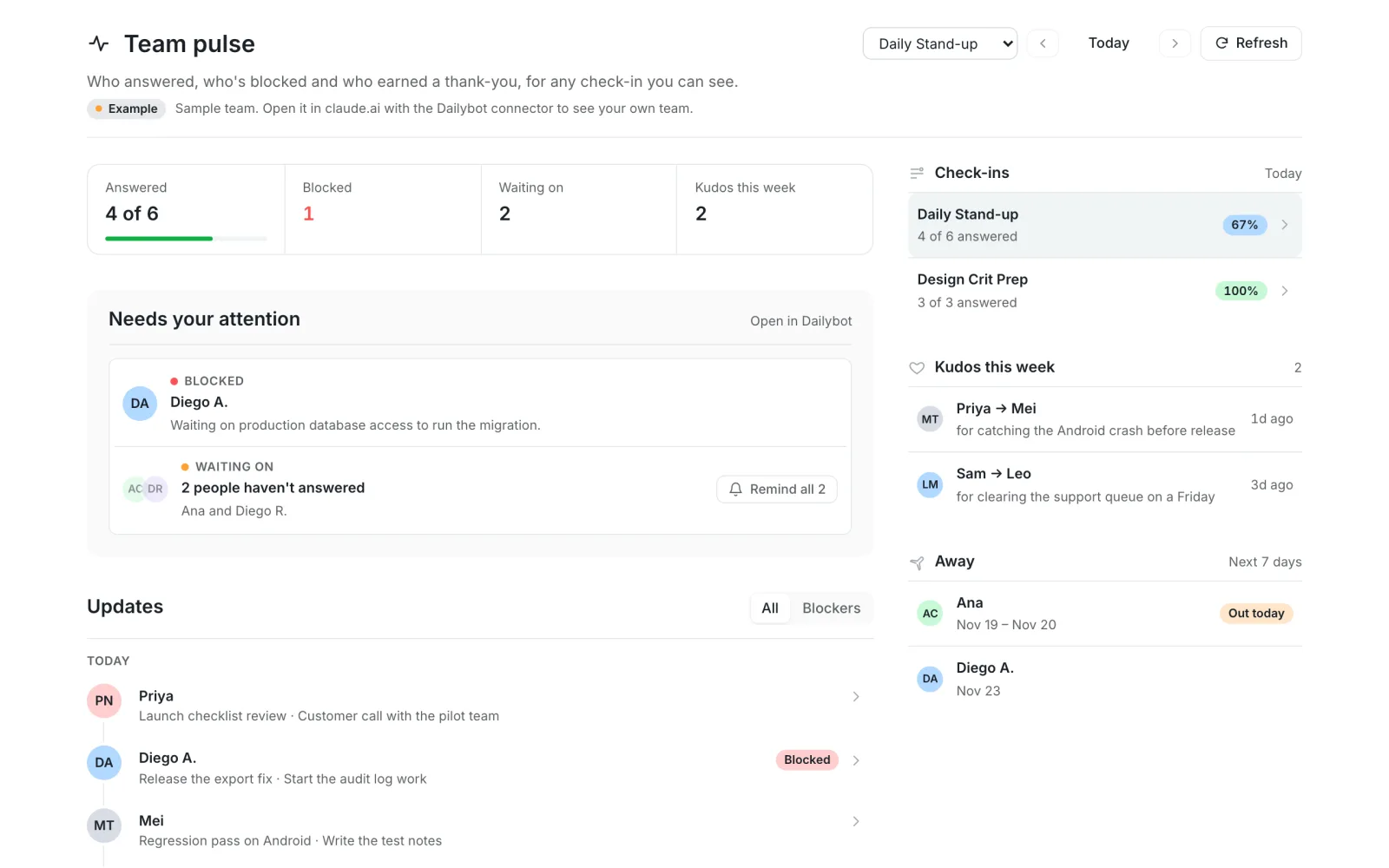
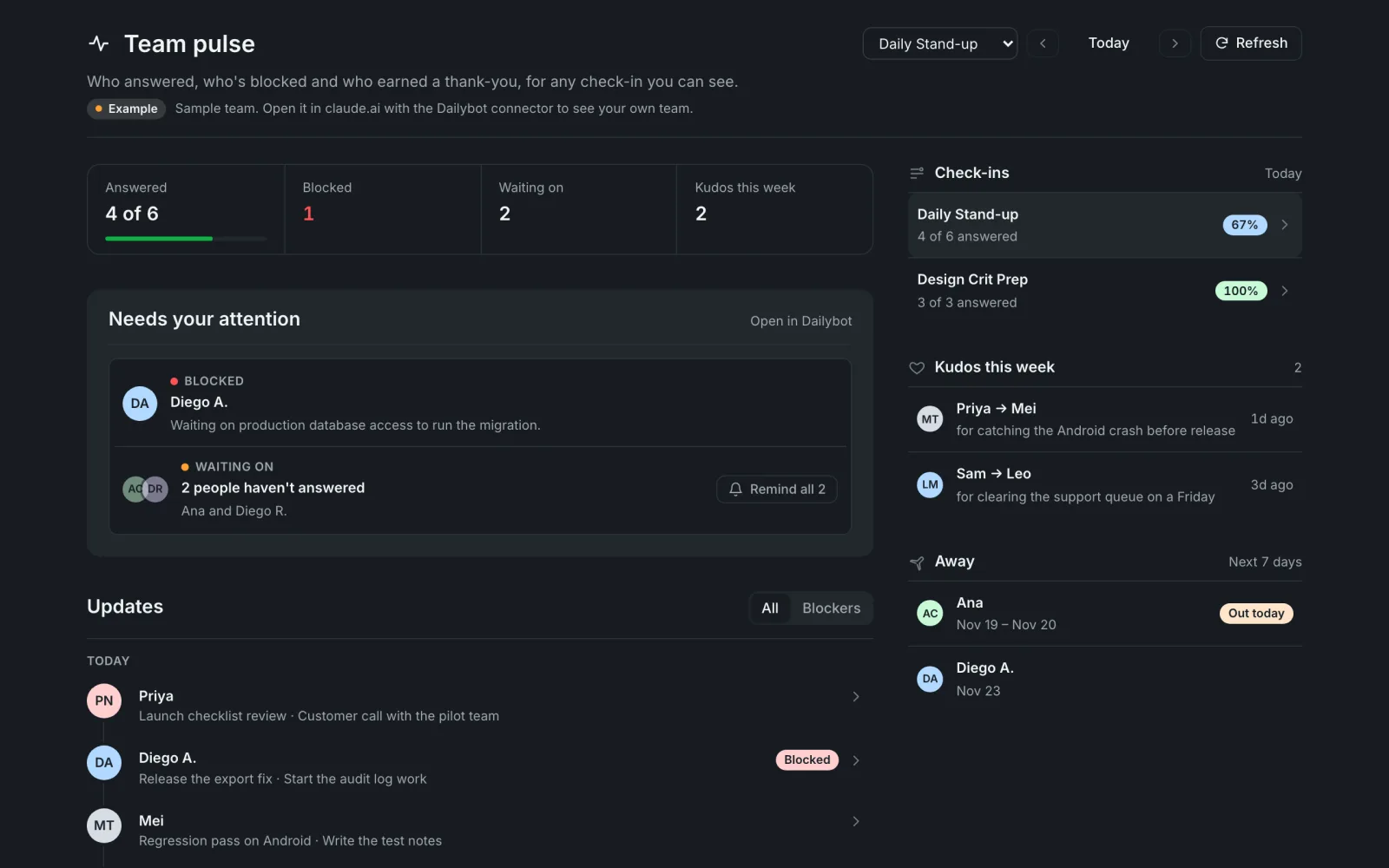
The header. A picker for any check-in you can see, arrows to move between days, and a refresh button. An Example label appears when the page is showing sample data.
The numbers. Four counts across the top: how many people answered (with a progress bar), how many reported a blocker, how many you are still waiting on, and how many kudos the team gave this week.
Needs your attention. Blockers first, with the person and what they are stuck on. Then the people who haven’t answered yet, with a button to remind them all.
Updates. Today’s answers, one line per person, with a filter to show only the blocked ones. Open a row to read the full answer.
The side column. Your check-ins with their answer rate for the day, the kudos given this week and what they were for, and who on the team is away in the next seven days.
What it can change
Two things: send a reminder to the people who haven’t answered, and give kudos to someone on the team. Both show you who will be notified and what the message says, and wait for your confirmation. Reading the check-in never changes anything.
Make it yours in two steps
You need Claude and a Dailybot workspace with MCP access.
- Add the Dailybot connector to Claude. Customize (claude.ai/plugins) → Connectors → Add → Add custom connector. Name it "Dailybot" exactly, use https://mcp.dailybot.com/mcp, then Connect and Allow.
- Duplicate a template. Open it, then Share → Duplicate. Your copy runs on your Dailybot.
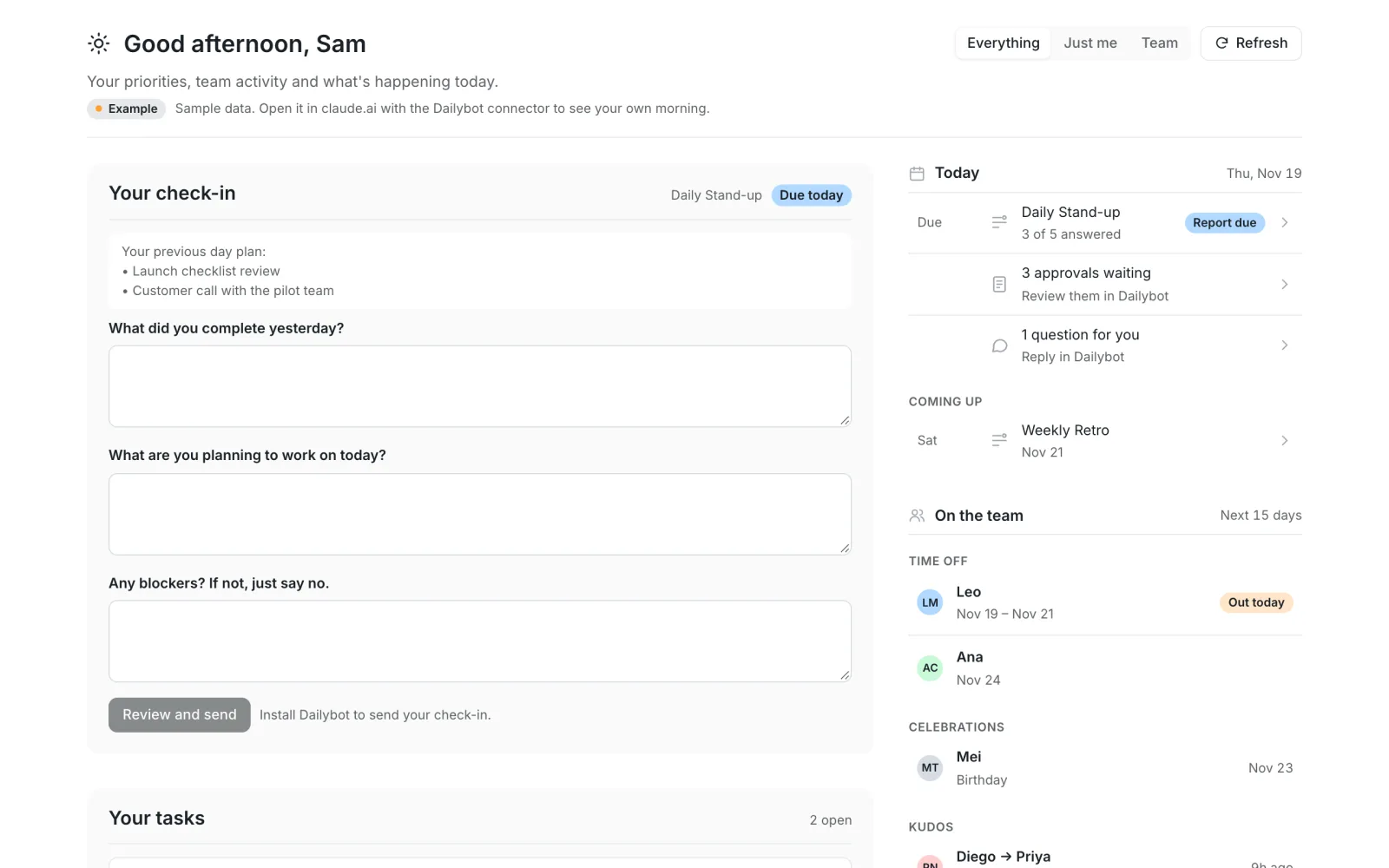
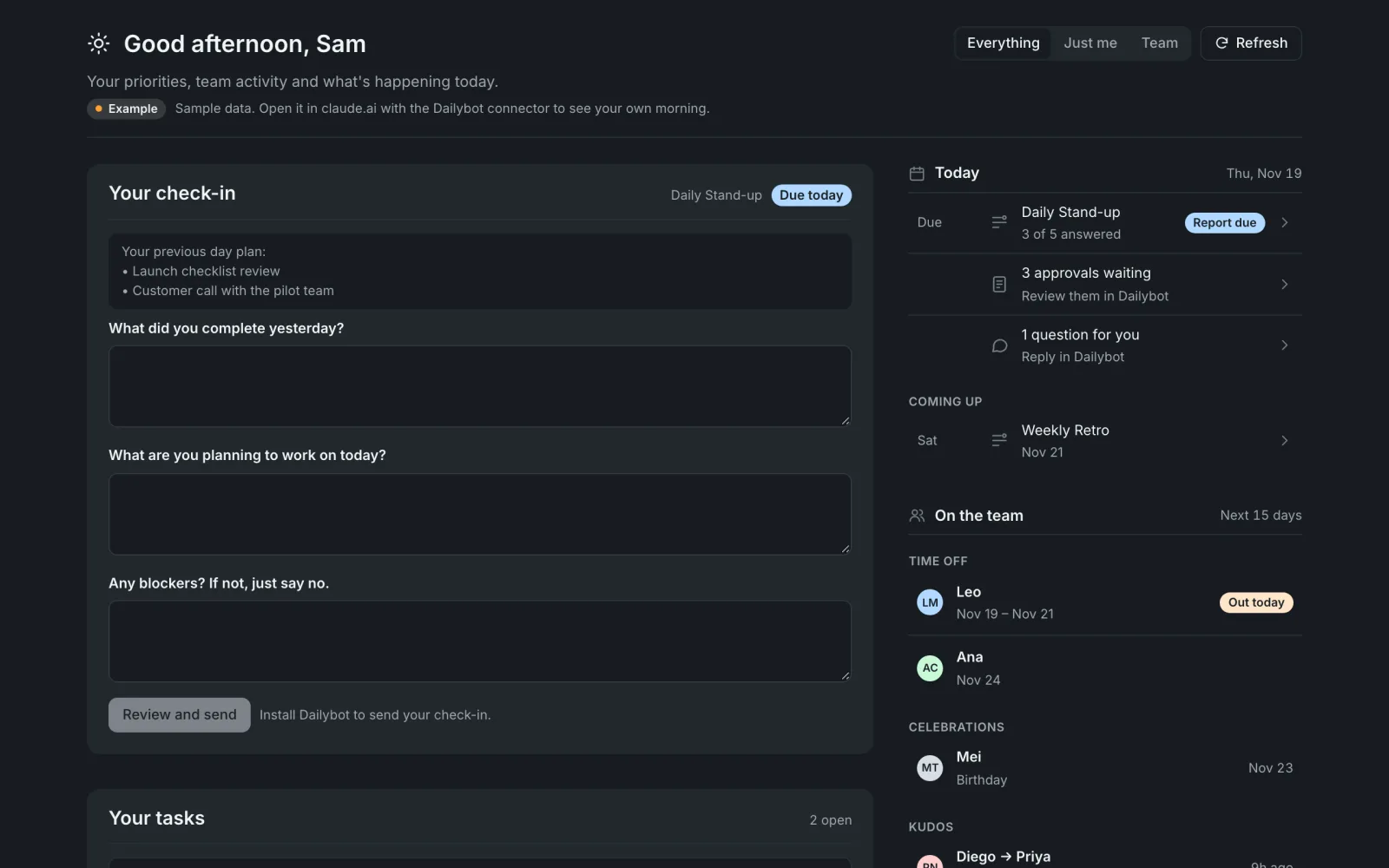
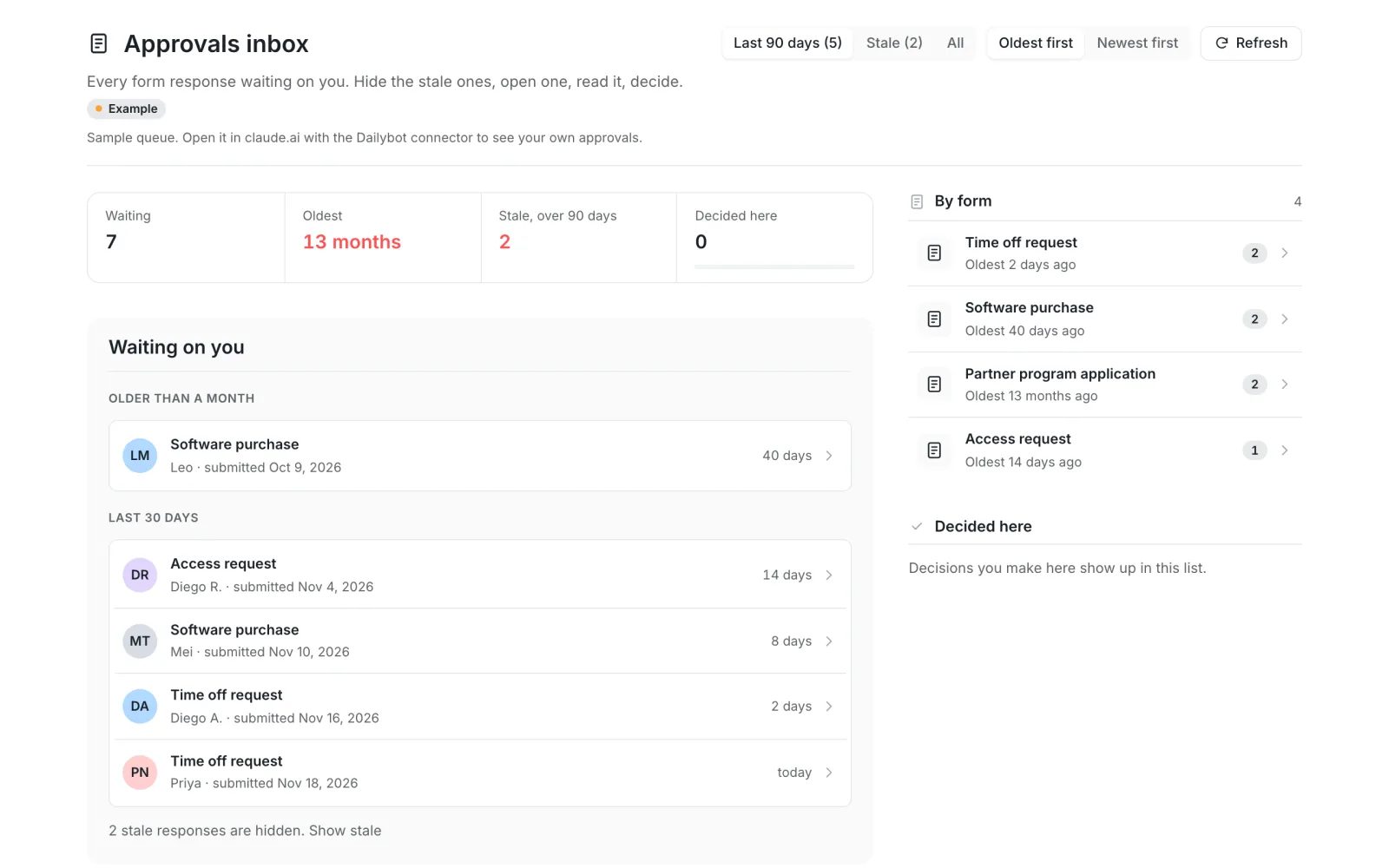
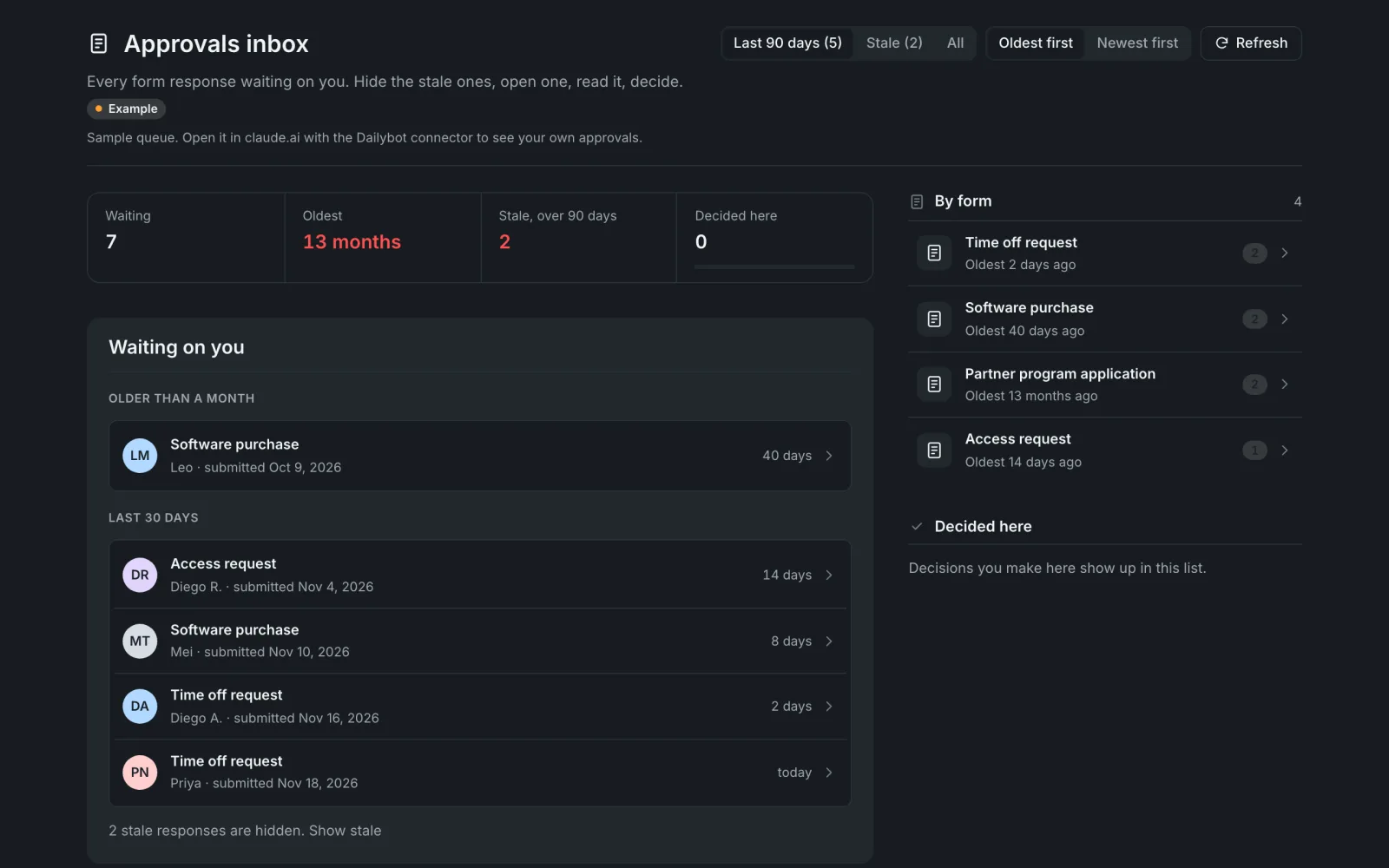
Without a connector named "Dailybot", a template shows example data.
Using Claude Code, Cursor, VS Code or ChatGPT? open the setup guide
Prefer to ask?
Type this in Claude with the Dailybot connector on to get the same result without the template.