Set up your secondary email address for Dailybot
When you sign up for Dailybot, your account is connected to the email address from your chat platform – Slack, Discord, Microsoft Teams, or Google Chat. Sometimes you need a different email to configure integrations such as ClickUp, Jira, Shortcut, or GitHub. To make that possible, you can add a secondary email to your Dailybot account.
Before you begin
- You need access to the inbox of the email address you want to add – Dailybot sends a verification (magic) link to it.
- The verification link is valid for 24 hours. After it expires, you have to start the process again.
Add your own secondary email
-
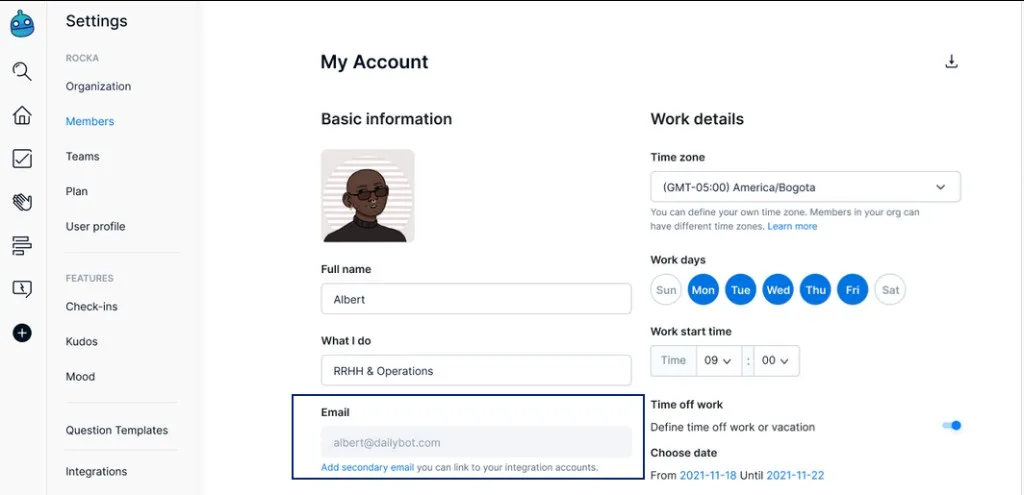
Go to Members and find the Email section, then click the Add secondary email link.
-
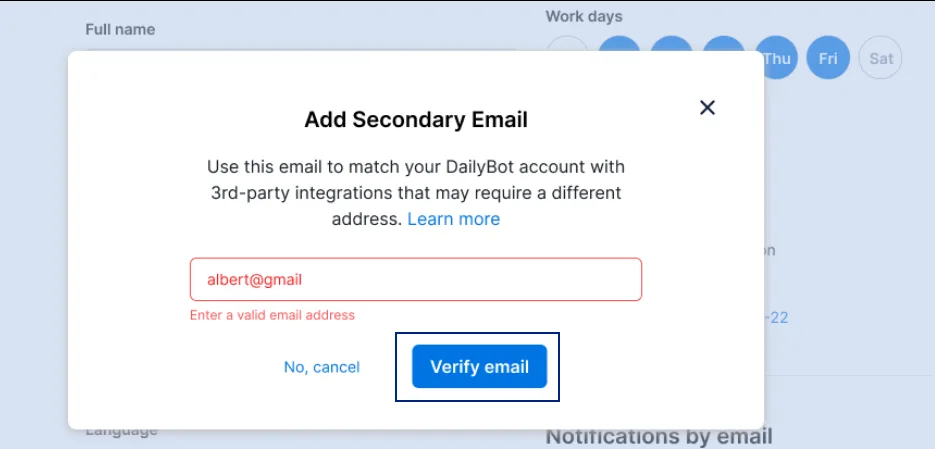
In the modal window, type the email address you want to add, make sure it is spelled correctly, and click Verify email.
-
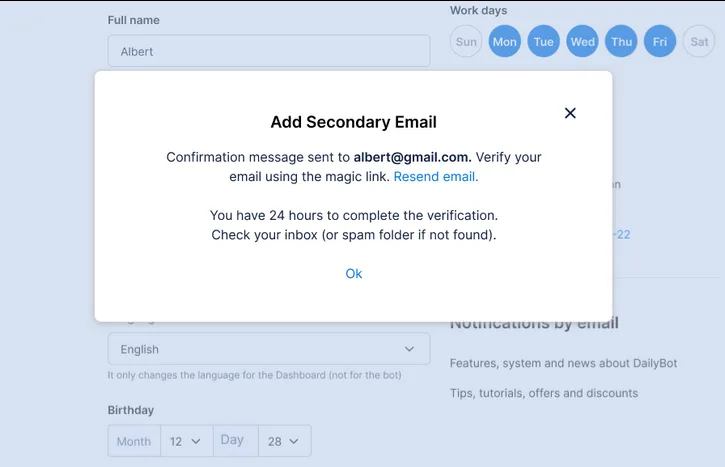
Open your mailbox and click the magic link Dailybot sent to verify the new address. Remember the link only works for 24 hours.
-
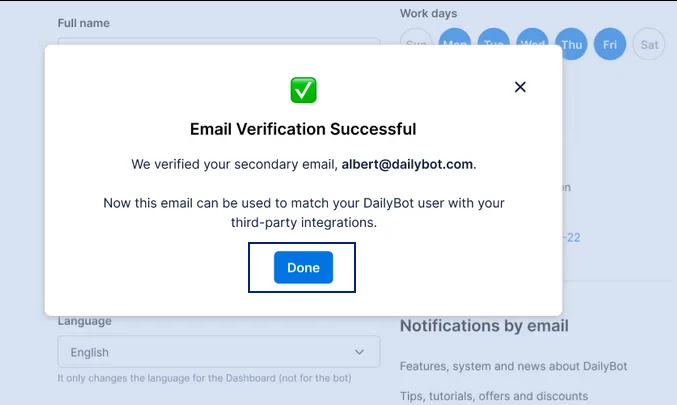
Once the address is verified, you’ll see a confirmation message.
-
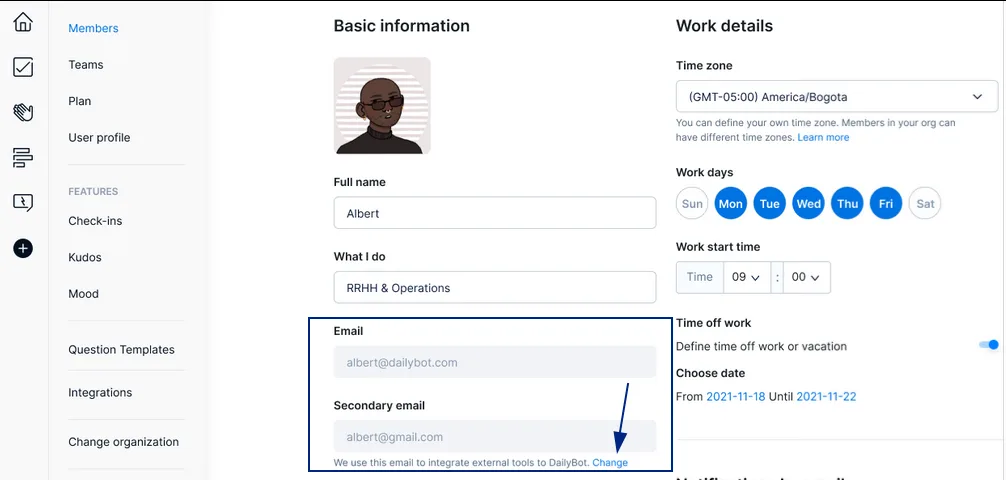
The secondary email now appears in the web app. To update it later, click Change.
How can admins add a secondary email for org members?
Organization admins can set this up on behalf of their members:
- Go to Members and select the member.
- Click Edit to open their profile information.
- In the editing tab, click the Add secondary email link.
- Type the secondary address and click Verify email.
- Ask the member to open their inbox and click the magic link to complete verification – the same 24-hour limit applies.
Once the secondary email is confirmed, the member sees a confirmation message in the web app.