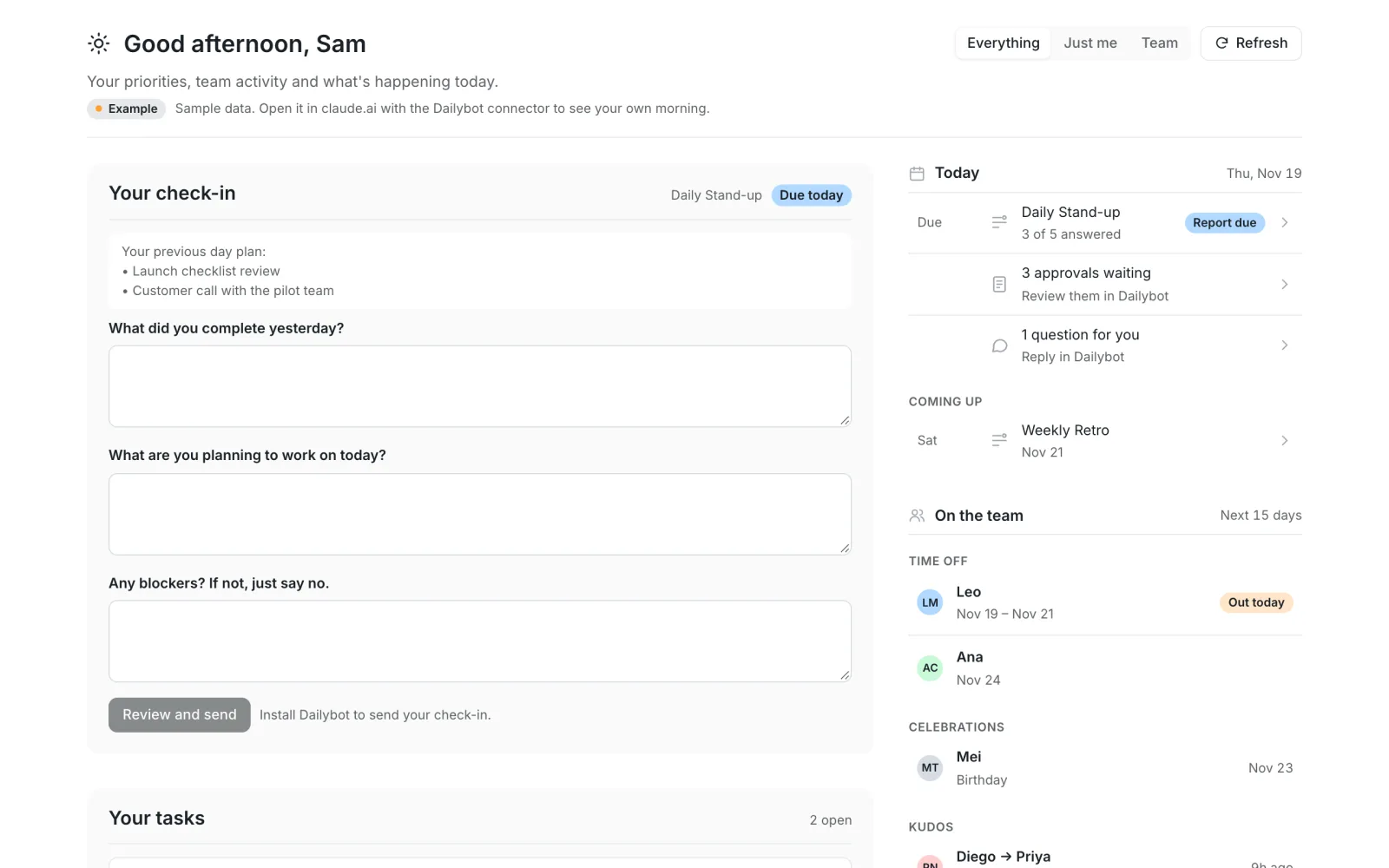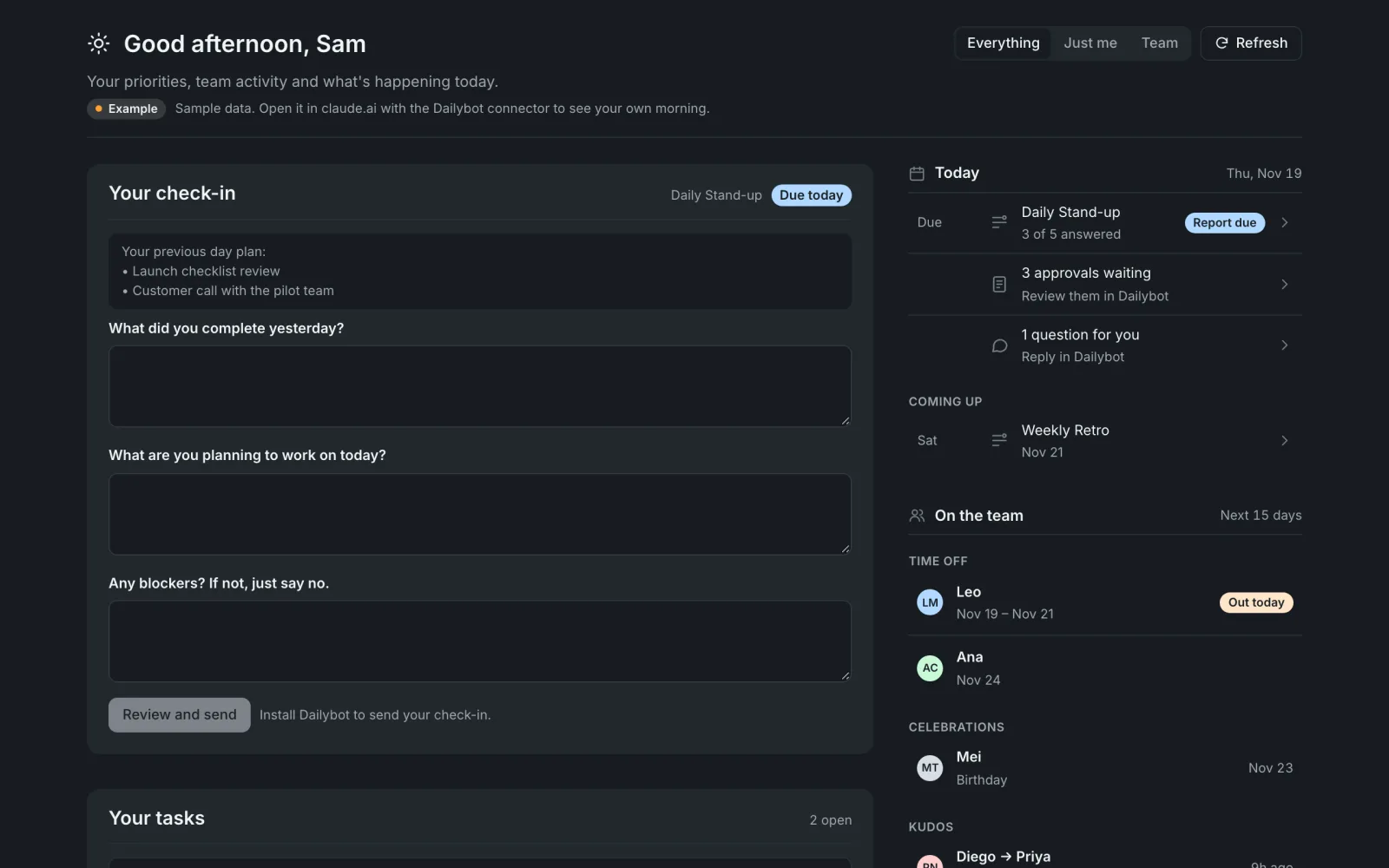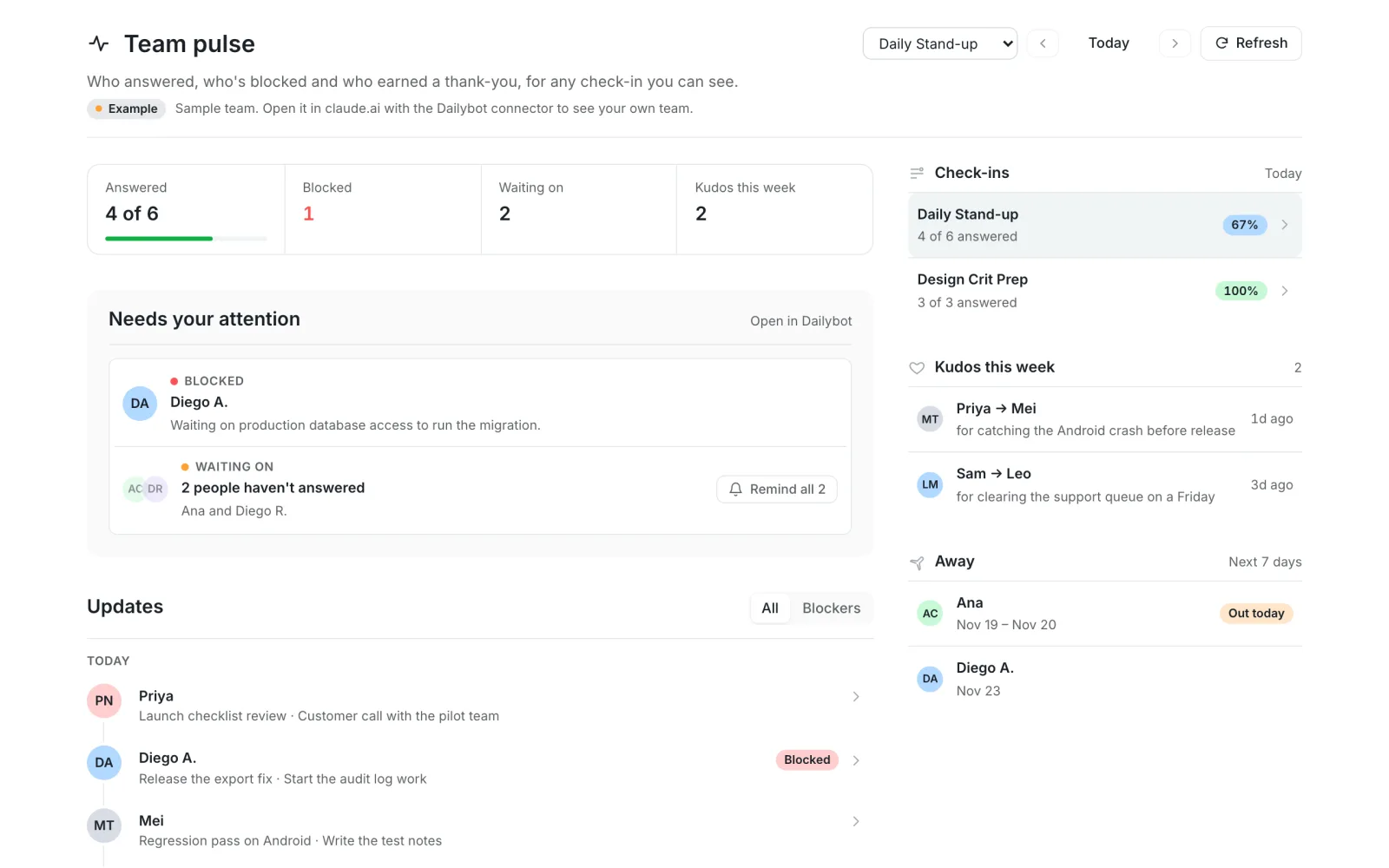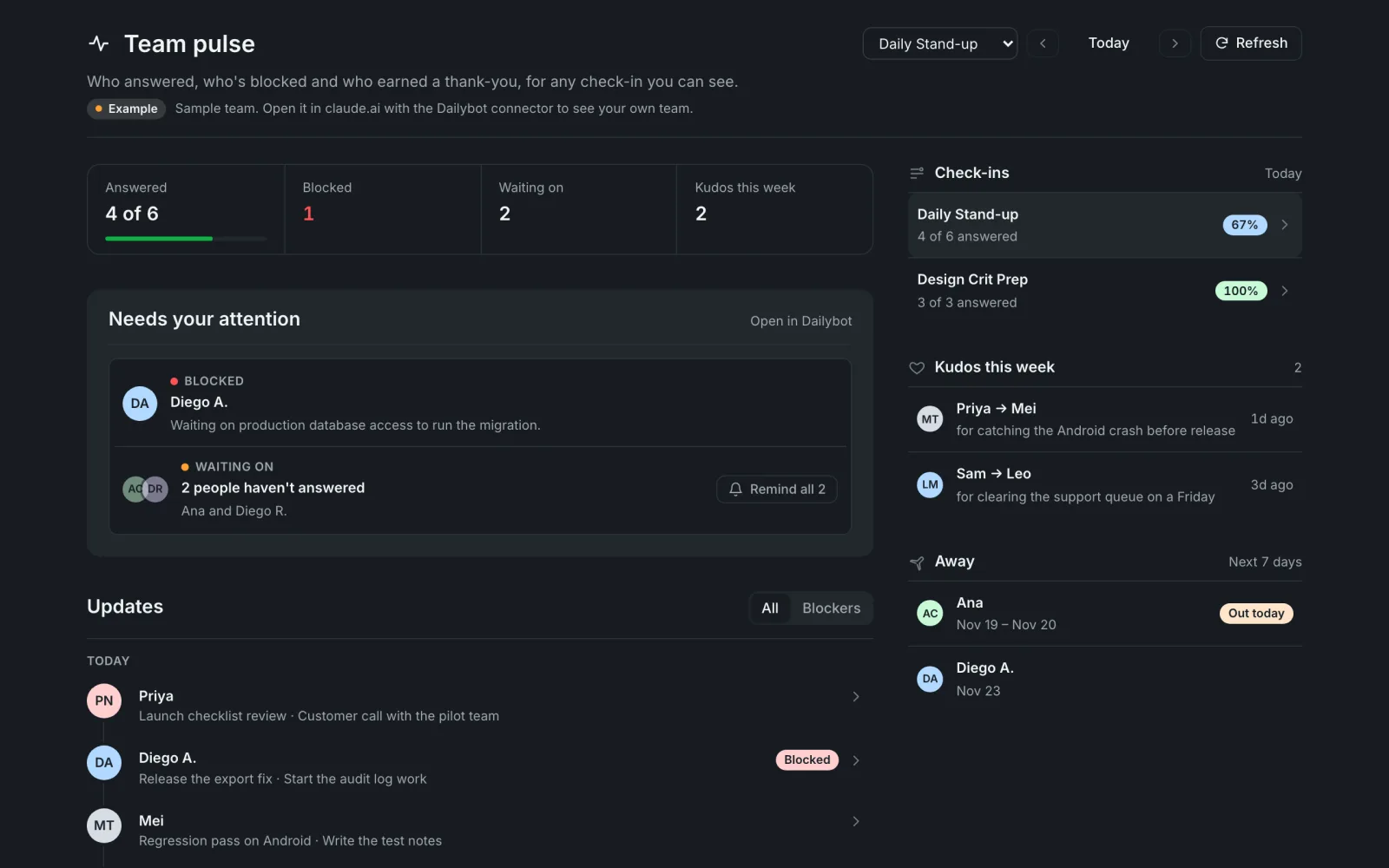
What it’s for
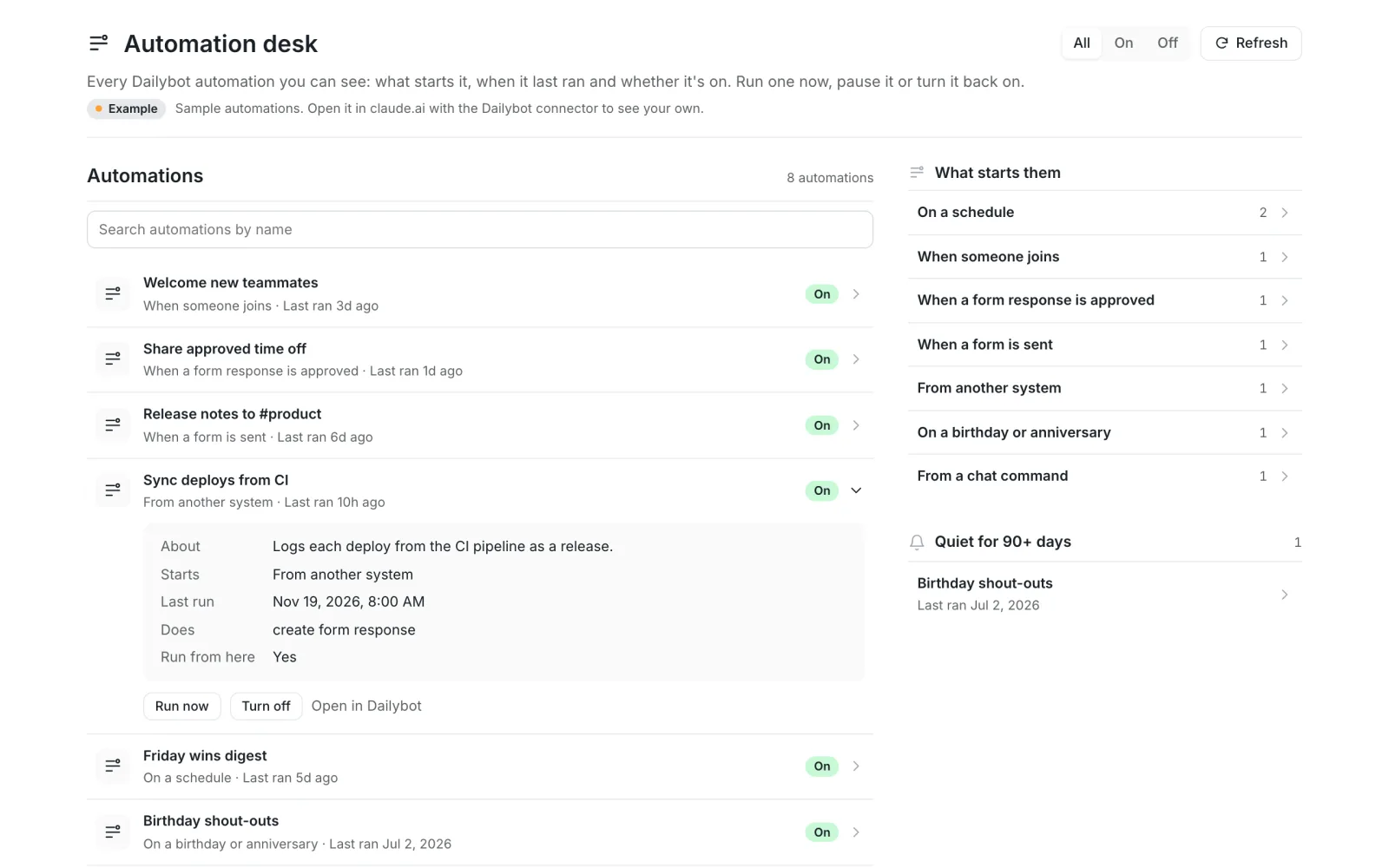
Automation Desk shows every Dailybot automation you can see in one list: what starts it, when it last ran and whether it’s on. It helps you spot the ones that went quiet and switch one off or back on without opening the automation builder.
What you see
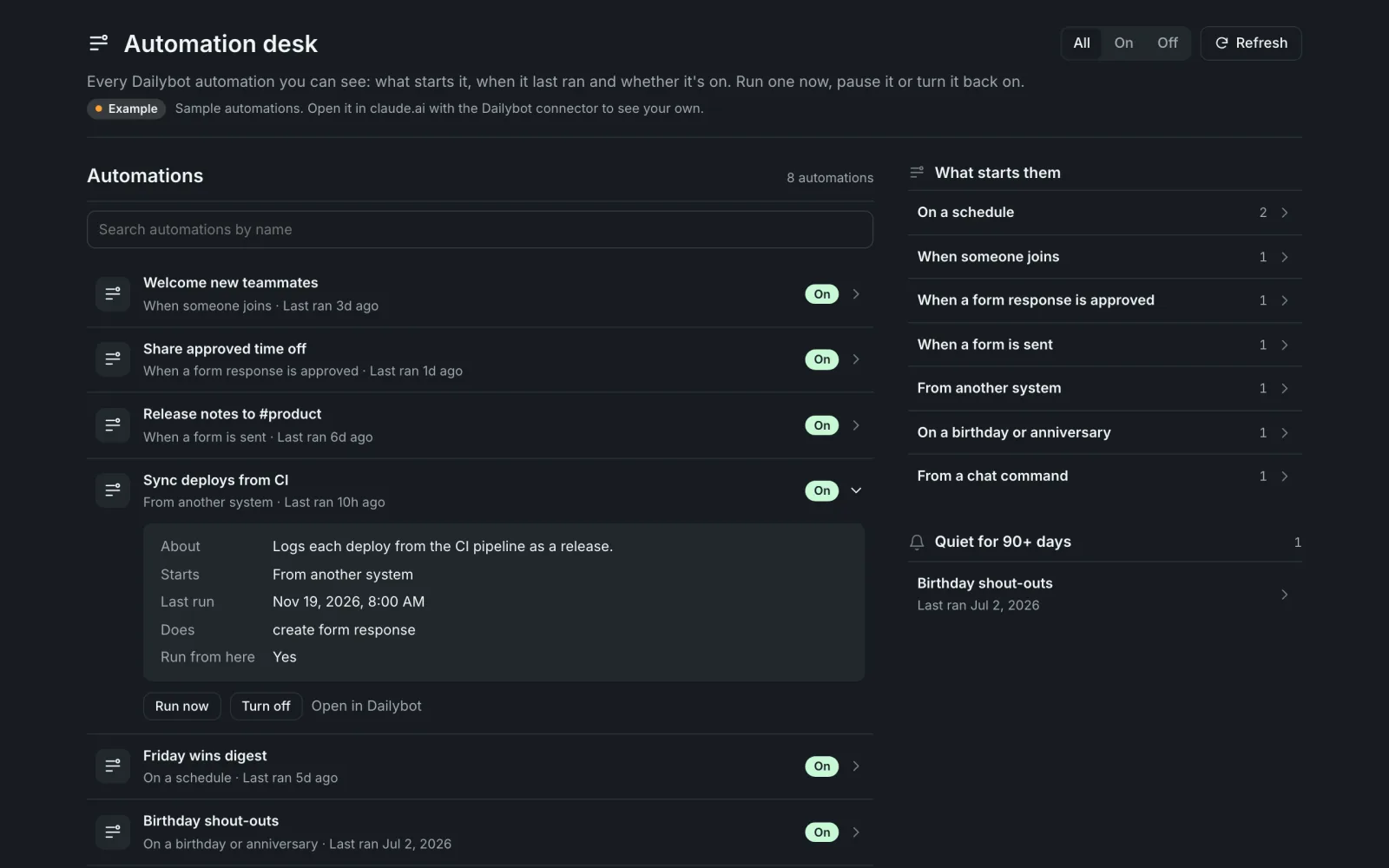
The header. A filter for all, on or off automations, and a refresh button. An Example label appears when the page shows sample data.
Automations. Each one with its name, what starts it (a schedule, a form being sent or approved, someone joining, a birthday, a chat command or another system) and when it last ran, plus an On or Off label. A search box finds any automation by name.
The details. Open one to see its description, what it does, its last run time and whether it can be run from here, with a link to open it in Dailybot.
The side column. How many automations each kind of trigger starts (tap one to filter the list), and the active automations that haven’t run in 90 days or more.
What it can change
Three things, one automation at a time: run it now (only when Dailybot allows starting it from outside), turn it off, or turn it back on. The page says what will happen and asks you to confirm before it changes anything in Dailybot.
Make it yours in two steps
You need Claude and a Dailybot workspace with MCP access.
- Add the Dailybot connector to Claude. Customize (claude.ai/plugins) → Connectors → Add → Add custom connector. Name it "Dailybot" exactly, use https://mcp.dailybot.com/mcp, then Connect and Allow.
- Duplicate a template. Open it, then Share → Duplicate. Your copy runs on your Dailybot.
Without a connector named "Dailybot", a template shows example data.
Using Claude Code, Cursor, VS Code or ChatGPT? open the setup guide
Prefer to ask?
Type this in Claude with the Dailybot connector on to get the same result without the template.