Choose where reports post and give the bot channel access
Every check-in posts its compiled summary to a report destination — usually a channel in Slack, Microsoft Teams, Google Chat, or Discord. For that to work, Dailybot must be a member of the channel with permission to post there. This is the single most common thing to get right when you set up a check-in.
Before you begin
- You need Team Manager or Organization Admin permissions to set a report destination.
- Decide which channel the team should see the standup summary in.
Set the report destination
- Sign in at app.dailybot.com and open Check-ins.
- Select your check-in to open Edit Check-in (or finish creating a new one first).
- Open the Sharing tab.
- Under Channels to post responses, search for and select the channel where summaries should post. You can add up to three channels.
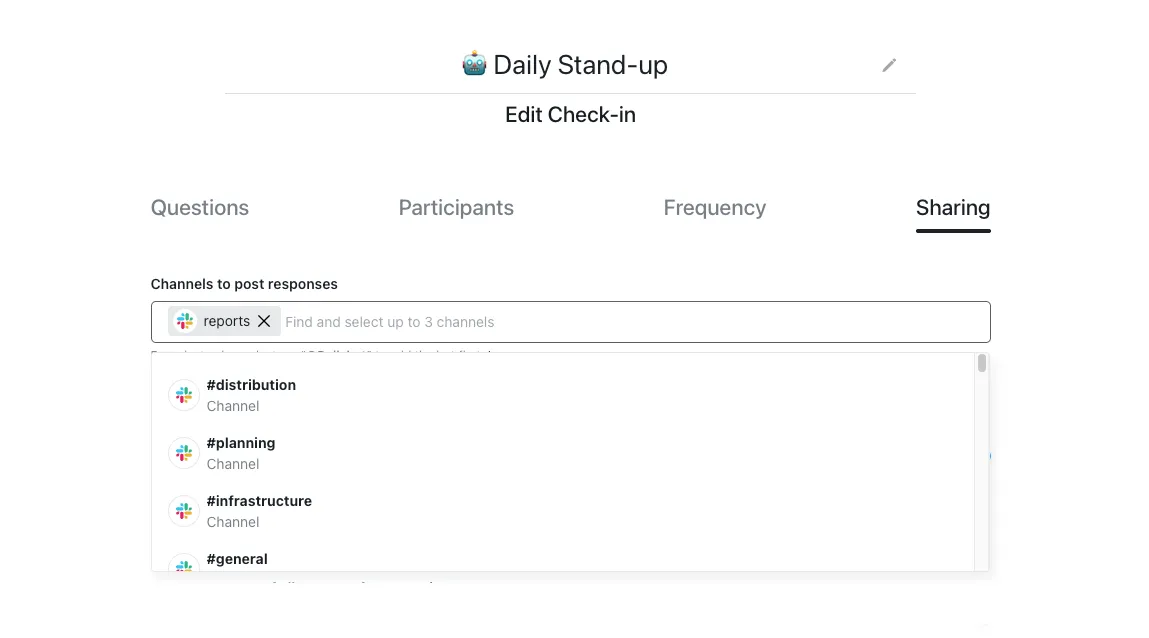
- Save the check-in.
If the channel you need is already in the list, you are done. You do not need to invite the bot separately for public channels Dailybot can already see.
Channel not showing in the dropdown?
Dailybot can only list channels it has access to. Invite the bot when the channel is missing from the picker — usually a private Slack channel, or when the channel list has not refreshed yet.
- Slack — open the channel and run
/invite @Dailybot. For a private channel, someone already in it must run the invite. Wait a moment, then return to the Sharing tab and search Channels to post responses again. - Microsoft Teams — add Dailybot to the team or channel from the channel’s Manage or Apps menu, then refresh the picker.
- Google Chat — open the space and add Dailybot from Add people & apps, then search again.
- Discord —
/invitethe Dailybot bot into the channel and allow Send Messages and Embed Links, then pick the channel again.
If you try to save without access, you may get a permission error. That is expected: chat platforms only expose a channel to an app once the app is a member with the right scope.
Still getting an error or an empty list?
If the channel still will not appear or saving fails after you added the bot, work through I can’t find the channel for my report destination. It covers private-channel visibility, unsupported channel types, and sync delays step by step.
Where it asks vs. where it reports
Remember Dailybot uses two surfaces: it asks each person in a direct message, and it posts the summary to the report destination. A teammate answering in DM is normal — only the summary goes to the channel. For the full model, see Configuring where check-in reports are posted.